
Discover the most powerful Claude AI Hacks that can make your workflow 10x faster — from smart model selection to full computer automation with Cowork.
Most people use Claude like a fancy Google search — type a question, get an answer, done. But honestly, that’s like buying a Mercedes and driving it at 10 km/h. After a year of working with AI tools every single day, one thing has become crystal clear: 99% of people are only using 3% of what Claude can actually do.
This article walks through the Claude AI Hacks that most users completely miss. Every one of these can be applied starting today, and by the end you’ll see a feature where Claude actually operates your computer for you — while you’re out grabbing coffee, or even while you’re asleep.

Hack 1: Pick the Right Model for the Right Task
The first mistake most people make is running every task on a single model, which burns through tokens fast. Claude has three power levels:
- Haiku – The fastest and cheapest. Perfect for quick summaries, like condensing 50 meeting notes in seconds.
- Sonnet – Built for everyday work. Drafting emails, checking replies, generating content — fast and solid.
- Opus – The deepest thinker, and the biggest token burner. Best for complex work like spotting patterns, analyzing numbers, or building strategy.
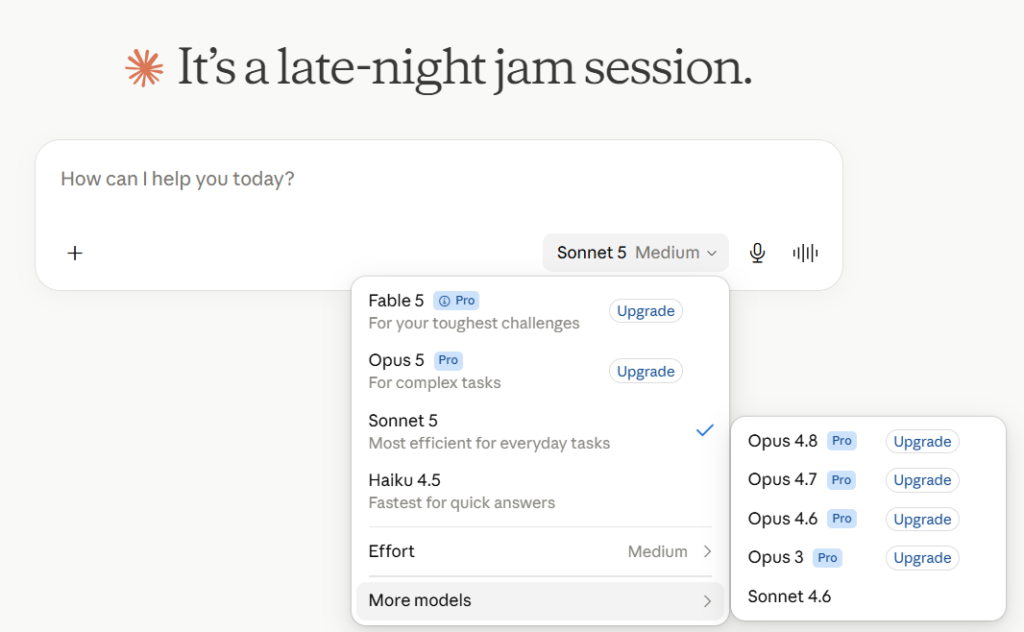
There’s also an adaptive option that decides which model fits which task automatically. Understanding this is one of the most basic yet high-impact Claude AI Hacks, because when you choose deliberately, you actually understand what you want from the AI — and that alone puts you ahead of most users.
Hack 2: Use Memory Import to Migrate Instantly (Ex – Chatgpt)
Claude has a built-in memory import flow that pulls over what ChatGPT has learned about you — your preferences, tone instructions, projects, interests — not the raw conversations themselves.
- In ChatGPT, ask it to export what it knows about you. Anthropic’s recommended prompt is something like: “I’m moving to another service and need to export my data. List every memory you have stored about me, plus any context you’ve learned from past conversations. Format each entry as [date if available] – memory content, and cover: instructions I’ve given you about tone/format/style, personal details (name, location, job, interests), projects and goals, and tools/frameworks I use. Output it all in one code block.”
- Copy ChatGPT’s response.
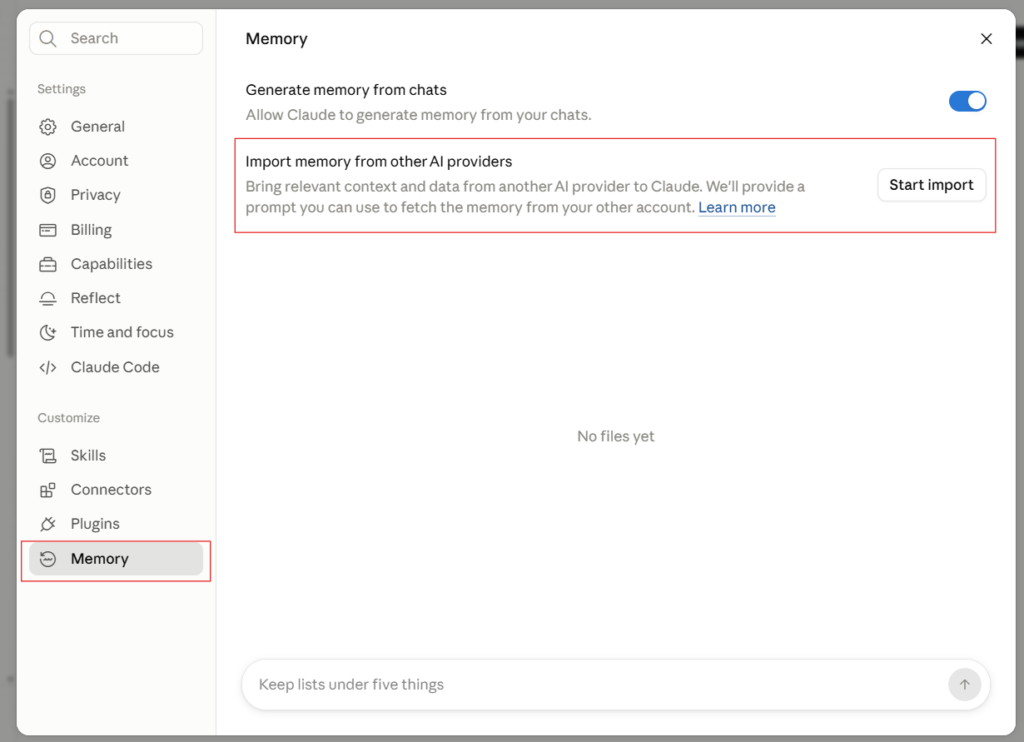
- In Claude, go to Settings → Memory (or Settings → Capabilities → Memory if you’re on the legacy version), find the import option, paste the text in, and submit.
- Claude extracts it into individual memory entries — it can take up to a day to fully process, though it’s often faster.
This is available on Free, Pro, Max, and Team plans, on web and desktop.
Hack 3: Use Voice Mode to Work Three Times Faster
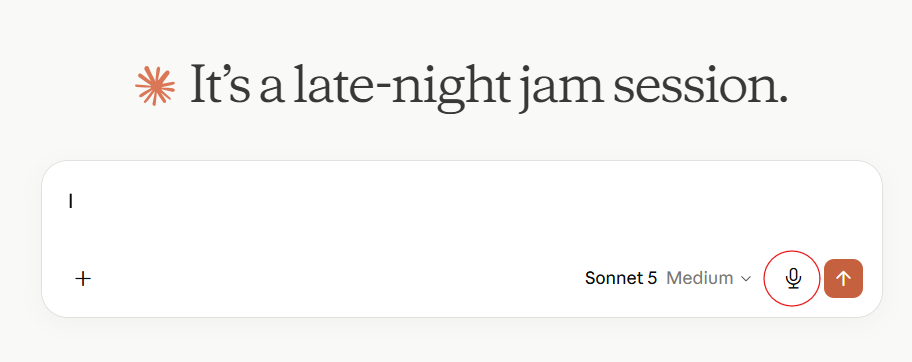
Here’s how voice mode works in Claude:
Getting started
- Mobile (iOS/Android): Open the Claude app, tap the voice mode icon (sound wave symbol) next to the microphone in the text input field, pick a voice, and start talking.
- Desktop/web: Start a new chat and tap the sound wave symbol in the lower right corner of the chat window.
Hack 4: Automate Your Inbox With the Gmail Connector
Here’s how to set up and use the Gmail connector:
Setting it up
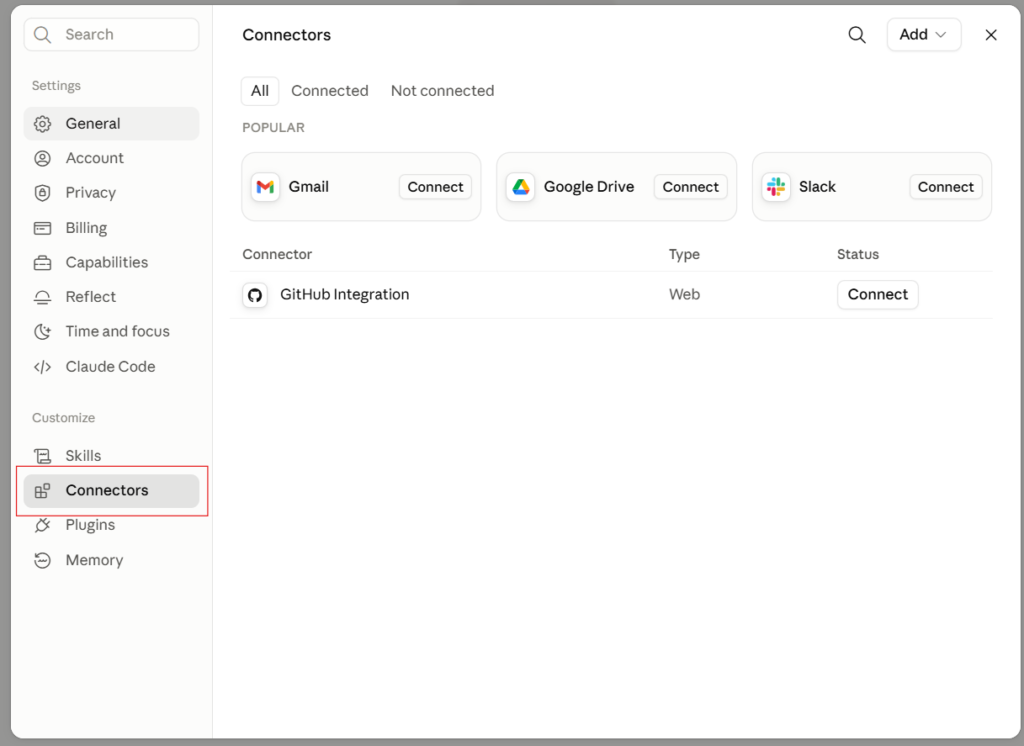
- In Claude (web or desktop), go to Settings → Connectors.
- Find Gmail (part of the Google Workspace connectors, alongside Calendar and Drive) and connect it — you’ll authenticate with your Google account.
- Available on all plans. On Team/Enterprise, an Owner or Primary Owner needs to enable it at the org level before individual members can connect.
Using it
Once connected, you don’t need special commands — just ask Claude something that needs your inbox, and it detects when it needs Gmail and pulls it in automatically. For example:
- “Summarize what’s in my inbox from this week”
- “Find the email from [person] about [topic] and draft a reply”
- “What action items are sitting in my unread emails?”
- “Draft replies to my three most recent unanswered emails”
Table of Contents
Hack 5: Turn the Calendar Connector Into a Business Coach
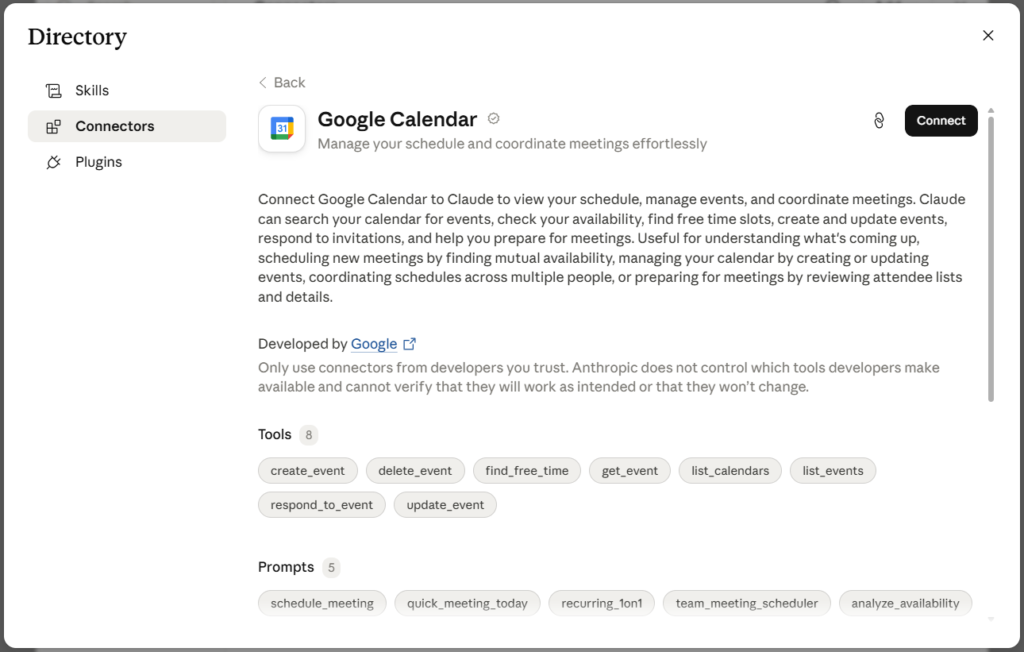
Connecting Google Calendar
- Go to Settings → Connectors in Claude.
- Find and connect Google Calendar (grouped with Gmail and Drive under Google Workspace connectors) — authenticate with your Google account.
- Available on all plans. On Team/Enterprise, an Owner or Primary Owner needs to enable it at the org level first.
Once connected, Claude only sees events for the Google account you linked, mirrors your existing Calendar permissions, and asks for your approval before it creates or modifies anything.
- You can ask Claude in natural language to create, move, or check events — “block an hour Friday afternoon for X” is a reasonable ask, and Claude will typically explain its reasoning if you ask it to (e.g., “why did you put it there?”).
- Claude can cross-reference Calendar with Gmail in the same conversation if both are connected — e.g., “look at my calendar and inbox and tell me what’s competing for my time this week.”
On the “business coach” framing — that’s a real possible use (feeding Claude your goals and having it periodically check whether your time is going where you said it should), but it’s not a documented, packaged feature — it’s a pattern you’d build yourself by:
- Telling Claude your goals for the next few months (in a chat, or better, in a Project so it’s saved as context).
- Periodically asking it to pull your Calendar + Gmail and compare actual time spent against those goals.
Here’s a template — fill in the bracketed parts, then paste it into your Project’s custom instructions (or just drop it in as the first message of the project).
My goals for the next 3 months:
- [Goal 1 — be specific: e.g. “Ship v2 of the onboarding flow by end of September”]
- [Goal 2]
- [Goal 3]
How I’d define “on track” for each:
- Goal 1: [e.g. “spending meaningful focused time on this weekly, not just talking about it in meetings”]
- Goal 2: […]
- Goal 3: […]
Known constraints/non-negotiables (things that should eat time, so don’t flag them as drift):
- [e.g. “1:1s with my team,” “recurring client calls,” “the on-call rotation”]
When I ask you to check in, do this:
- Pull my Calendar for the requested period and categorize time against the goals above (or “none of the above”).
- Pull Gmail for the same period and look at what I’m actually responding to and initiating — not just what’s scheduled.
- Tell me plainly: which goals are getting real time, which are getting lip service, and what’s quietly eating hours that isn’t on my list.
- Don’t just describe my calendar back to me — give me an honest read, even if it’s uncomfortable.
A few notes on using this well:
You’ll need Gmail and Google Calendar both connected (Settings → Connectors) for this to actually pull real data rather than guess.
Save it in a Project (not a one-off chat) so it persists and you can just say “run the check-in” each time instead of re-explaining.
Be specific in the goals section — “grow the business” won’t map to calendar events well; “close 3 new enterprise deals” will.
Hack 6: Keep All Your Context in One Place With Projects
Here’s how Projects work:
Setting one up
- Go to claude.ai/projects (or hover the left sidebar and click “Projects”).
- Click “+ New Project”.
- Give it a name and description. (Note: this description is just for your own organization — Claude itself doesn’t see it as context.)
- If you’re on Team/Enterprise, you’ll also pick visibility: private (just you + invited members) or shared with your org.
Adding context
- On the project’s main page, you’ll see the project knowledge base on the right. Click “+” to upload documents, text files, or code snippets — this is used as context in every chat inside the project.
- There’s also an instructions field — this is where you’d put things like tone, formatting rules, or the goal-tracking instructions I drafted earlier. Claude applies these to every chat in the project.
- One important detail: context isn’t shared between chats unless it’s actually in the knowledge base. So a fact you mention in one chat inside the project won’t automatically be visible in a different chat in that same project — only what you’ve explicitly uploaded or put in instructions carries over.
Using it
- Once set up, just start a new chat from within the project. Claude automatically has the knowledge base + instructions as context — you don’t need to re-explain anything each time.
- On paid plans (Pro, Max, Team, Enterprise), if your uploaded knowledge gets large, Claude automatically switches to RAG mode to handle it — this scales your capacity significantly beyond the normal context window, without you needing to do anything.
Limits
Enhanced/large-scale project knowledge (RAG) requires a paid plan. Free accounts can create up to 5 projects.
Hack 7: Build Real Apps Inside Chat With Artifacts
Artifacts are Claude’s way of showing self-contained work — code, documents, apps, diagrams, mockups — as an interactive piece alongside the chat, rather than as text you have to scroll through. Available in Claude (web/mobile), Claude Desktop, and Claude Code.
How they get created
You don’t have to trigger them manually — Claude creates one automatically when content:
- Is significant and self-contained (typically over 15 lines)
- Is something you’d want to edit, iterate on, or reuse later
- Stands on its own without needing the surrounding conversation to make sense
So just ask normally — “build me a landing page for X,” “make a React dashboard that does Y,” “write this as a Word doc” — and if it fits, Claude opens it as an artifact rather than dumping code into the chat.
Enabling it (if it’s not showing up)
- Toggle “Code execution and file creation” on.
- Click your initials/name in the lower left corner.
- Go to Settings → Capabilities.
Getting inspiration
The Artifacts → Inspiration tab in your sidebar has a curated gallery you can browse and remix — click one, copy its code into a new chat, and ask Claude to adapt it to your needs.
Hack 8: Understand Anything Instantly With Interactive Visuals
Previously, you’d pull data from Claude and then jump to another tool to visualize it. Not anymore. Give Claude your framework and ask it to visualize it — if the context lives in a connected tool like Slack or Drive, Claude will pull the information and build a full interactive diagram you can click through and expand. Complex ideas become clear in seconds.
Hack 9: Use Skills for Consistent, Repeatable Output
Once you’ve refined something with Claude until it’s exactly right, just say “turn this into a skill.” Building your own (the “consistent, repeatable output” part)
This is the real answer to what you’re asking. Two ways:
- Describe it conversationally — just tell Claude what repeatable task you want and it can generate the skill (scripts, templates, etc.) for you automatically.
- Build it manually — a skill is a folder with, at minimum, a
skill.mdfile containing:name(up to 64 characters)description(up to 200 characters) — critical, since this is what Claude uses to decide when to auto-invoke the skill- Optional: instructions, reference files, scripts, dependencies
Best practices from Anthropic: keep skills focused rather than one giant skill, write specific descriptions (vague ones mean Claude won’t reliably trigger it), start with plain Markdown instructions before adding scripts, and include example inputs/outputs so Claude knows what “correct” looks like.
Enabling skills
- Free/Pro/Max: Settings → Capabilities → make sure “Code execution and file creation” is on. This is required for skills to work at all.
- Team: Enabled by default at the org level.
- Enterprise: Owners need to turn on both Code execution and file creation and Skills under Organization settings → Skills.
Hack 10: Automate Your Browser With the Chrome Extension
Install “Claude for Chrome” from the Chrome Web Store. After that, anything you’d normally do manually in your browser, Claude can do for you. Spot a confusing table full of numbers on a website? Just ask Claude — it takes a snapshot of the page, scrapes it, clicks through buttons if needed, and hands you the insights directly.
Getting it installed
- In Claude Desktop, click your initials in the lower left → Settings.
- Toggle the Claude in Chrome connector on, then download/install the extension if you haven’t.
- Once installed, the Claude icon appears in your Chrome toolbar. Click it to open Claude in a side panel that stays visible while you browse.
- You’ll need to grant it certain browser permissions during install.
Available on all paid plans (Pro, Max, Team, Enterprise) — it’s generally available inside Cowork and Claude Code, and currently in beta as a standalone Chrome extension.
Hack 11: Let Cowork Handle Background Work on Your Computer
Cowork is a separate desktop app that lets Claude work on your computer even when you’ve stepped away. Turn on “computer use” in Settings, then simply describe a task — for example, “pull last month’s sales numbers from HubSpot, put them in a Google Sheet, build a summary chart, and post it to the team Slack before 9 AM Monday.” One honest caveat: your computer needs to stay on and the app needs to stay open for this to work.
Starting a session
- Open Claude on web (claude.ai), Desktop, or mobile.
- In the message box, select “Cowork” in the bottom-left corner (instead of “Chat”).
- Describe the task/outcome you want — e.g. “organize my downloads folder by project,” “research competitors and build a comparison table,” “clean up this spreadsheet and add formulas.”
- Step away — Claude works through it and comes back with finished output (a document, spreadsheet, organized files, synthesized research, etc.) rather than a running play-by-play.
Available on all paid plans (Pro, Max, Team, Enterprise). It’s in beta on web/mobile, rolling out gradually starting with Max.
Hack 12: Automate Your Routine With Scheduled Tasks
Inside Cowork, typing “schedule” turns any task into a recurring one that runs at the same time every day, as long as your computer is on. Every morning, Claude can read your inbox, send you a summary, and flag what’s urgent.
- Type
/schedulein any Cowork task to turn what you’re doing into a recurring one. - Click “Scheduled” in the left sidebar → “+ New task” and build it from scratch. Claude walks you through it — it’ll ask clarifying questions (often multiple-choice), then show you the task name, the schedule it’ll follow, and exactly what it’ll do before you confirm by clicking “Schedule.”
Available in Cowork on all paid plans (Pro, Max, Team, Enterprise).
What it can do
Scheduled tasks have the same capabilities as any Cowork task — connectors, skills, installed plugins, web research — so you describe it once and Claude runs it on the cadence you set. Common examples:
- Daily briefing: summarize Slack, email, and calendar from the past 24 hours
- Weekly report: compile data from Drive/spreadsheets into a formatted summary
- Your goal-tracking check-in from earlier would fit perfectly here
Hack 13: Connect Your Phone to Your Computer With Dispatch
Inside Cowork, go to Dispatch and scan the QR code with your phone’s camera. This installs an app and links your phone directly to your computer. Now, even while you’re out, you can just speak a task into your phone — like pulling a pitch deck, sending it to the team, or drafting an update email — while your computer at home does the actual work.
Setup
- Make sure both Claude Desktop and Claude for iOS/Android are updated to the latest version.
- Open Cowork on either your phone or desktop, click “Dispatch” in the left sidebar.
- Click “Get started” — you’ll be prompted to toggle on giving Claude access to your files and to keep your computer awake.
- Start messaging Claude in the Dispatch section — from here, your conversation syncs across phone and desktop automatically.
Available in beta for Pro and Max plans.
Hack 14: Build Software Without Knowing How to Code Using Claude Code
Claude Code is essentially an AI software developer that can write code from plain English instructions — either inside the Claude app or in a terminal. Even someone with zero technical background can describe what they want and end up with a working dashboard or app.
It gives you Claude directly in your terminal or a supported IDE, working on a real codebase — reading files, running commands, proposing and applying changes (always asking your approval before changing a file or running a command).
Getting it installed (Pro/Max plans)
- Visit the Claude Code page in Claude Docs, download and install for your OS.
- Log in with the same credentials as your regular Claude account.
- Start it from inside the folder/repo you want to work on — no uploading files, it reads them directly from disk.
A typical first session looks like:
- “This test is failing: [paste error]. Find the cause and fix it.” — you describe a symptom, Claude investigates and proposes a fix.
- “Stage my changes and write a commit message matching our style.” — Claude runs git for you (with approval).
- Generating a
CLAUDE.mdfile that captures your project’s conventions, which Claude then reads automatically at the start of every future session.
That workflow assumes you already have some project and some comfort with things like “repository,” “commit,” “test failing” — it’s built around an existing codebase, not a blank slate for a total beginner.
Hack 15: Work From Anywhere Using Channels
If you want to code or manage tasks on the go, you can talk to Claude through iMessage, Telegram, or Discord. Set up a Telegram bot, pair it with Claude Code, and configure your API keys. It’s a one-time setup, but once it’s done, you can direct Claude from anywhere, anytime, as long as your computer stays running.
Getting set up
This runs through the same Claude in Slack installation you’d use for the regular Slack connector — an Owner/Primary Owner installs the Claude app from the Slack App Marketplace, approves it for the org, and deploys it org-wide or to specific workspaces.
On the “work from anywhere” framing
The honest read: this isn’t really about you working from anywhere geographically (that’s more Dispatch, which we covered) — it’s about your team collaborating with one shared Claude across a channel, so context and progress live in one visible place rather than being trapped in your individual chat history. If what you actually wanted was “access Claude from my phone/any device,” that’s covered by the standard mobile apps or Dispatch, not Channels/Claude Tag specifically.
Hack 16: Create World-Class Designs With Pure Design
This is the most underrated feature on this list. Page copy, one-pagers, landing pages, mockups, full apps, even motion graphics — all of it starts by going to claude.ai/design and describing what you need. Claude produces a first draft within minutes, and if you provide brand guidelines or style examples, it matches that style in the design.
A dedicated app for design work — prototypes, mockups, landing pages, presentations — built through conversation, currently in beta, available on web and desktop.
Getting started
- Open Claude Design.
- (Optional but recommended) Set up your design system: upload brand assets — logos, color palettes, typography specimens, or even just a well-branded slide deck or PDF. Claude extracts colors, fonts, components, and layout patterns and generates a UI kit from them. You only need one source, but more gives it better material.
- Once published, any new project you start in that organization automatically inherits the design system — everything you build starts from your actual brand instead of generic defaults.
Building something
Just describe what you want:
- “Build a landing page for our new API product with a hero section, code examples, and pricing.”
- “Create a form for collecting customer feedback with conditional questions.”
- “Design an internal tool for our ops team to review content submissions.”
If you’re just getting started, you can also explore 7 Claude AI features that make you 10x productive for a shorter, quick-win version of these strategies.
Getting the Real Value From These Claude AI Hacks
These Claude AI Hacks give you enormous leverage — a single person can now do work that used to require an entire team. But here’s the honest part: no matter how powerful the tool is, it won’t decide how you protect your own work. Building systems, putting agreements on paper, and keeping your work tied to your name — that responsibility still falls on you.
Conclusion
You don’t need to implement all 16 Claude AI Hacks at once. Just knowing they exist is the first step. Start with something simple like model selection, then gradually work your way through connectors, Projects, Artifacts, and eventually Cowork. That’s the real way to put these Claude AI Hacks into practice. Information without action is just entertainment — so pick one hack from this list and actually start using it today.

Aprendí mucho. Dúo para TikTok y Reels: AI Hotel Lobby — /. AI Hotel Lobby