
If using Google is like driving a car, and using ChatGPT is like flying economy class, then using Claude ai is like having your own private jet.
That’s not an exaggeration once you actually dig into what Claude can do. Most people sign up, treat it like just another chatbot, and never touch the features that make it genuinely different from ChatGPT, Gemini, or anything else out there. And that’s a mistake, because those extra features aren’t just nice-to-haves — they can boost your productivity, your speed, and honestly, your income.
Here’s a complete walkthrough, from creating an account to using Claude’s most powerful tools, exactly the way a beginner would experience it.

Table of Contents
Getting Started (And Yes, the Free Plan Is Genuinely Good)
Signing up is simple — head to claude.ai, sign up with Google or your own email, verify your number, and tell Claude what you want to use it for. It’ll then show you three plans:
- Free — completely free, and as a beginner you can do about 99% of what you need on this plan alone.
- Pro — more usage, access to more powerful models, and access to Claude Code and Claude Cowork.
- Max — even more usage, faster outputs, built for heavier workloads.
Start free. Only move to Pro once you’re using Claude heavily and want to explore Code and Cowork.
One thing Claude tells you upfront that’s worth noting: it’s a completely ad-free chat (unlike ChatGPT, which has started rolling out ads in the US), and it has safeguards against violent, abusive, or deceptive content. You’ll also get the option to let it use your chats to train its models — turn it off if that makes you uncomfortable.
Set Up Your Preferences Before You Do Anything Else
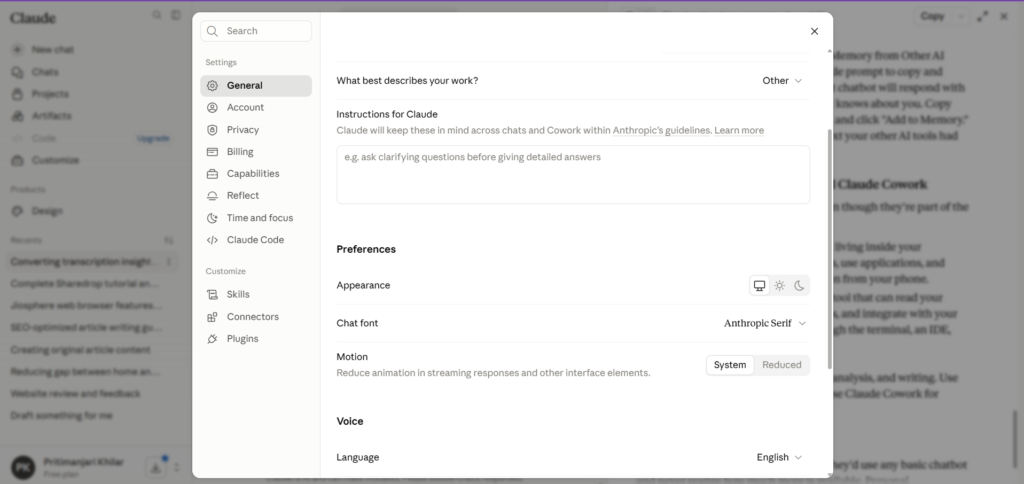
This is the one small step that makes the entire experience noticeably better. Go to your profile → Settings. Here you can tell Claude your name, what kind of work you do, and — most importantly — your personal preferences.
This is where it gets interesting. You can tell things like “keep explanations brief and to the point” or “ask clarifying questions before giving detailed answers,” and it’ll actually follow that across every conversation.
Here’s a fun example: try adding a preference like “I’m trying to improve my English vocabulary — use an advanced word once in a while in your responses and explain its meaning.” Once that’s saved, it will naturally slip in a good word every so often during totally unrelated conversations, and explain what it means. It genuinely works like magic — your English improves passively while you’re using this for regular work.
Prompting: The Skill That Actually Matters
Before diving into its special features, there’s one universal rule that applies to any AI chatbot: your output is only as good as your prompt.
Think of the AI as a cook and your prompt as the recipe. A bad recipe means even a great cook can’t save the dish. A great recipe means even an average cook produces something good.
A beginner might write something like: “Help me prepare for an interview for a technical role.” That’s vague, and the output you get back will be equally vague — generic advice you probably already knew.
Instead, try the AIM framework:
- A – Actor: Tell who it should act as.
- I – Input: Give it all the relevant context about your situation.
- M – Mission: Tell it exactly what you want it to do.
So instead of the vague version, you’d write: “You are an experienced technical recruiter at Google. I am a software engineer with two years of experience at HSBC, applying for a senior software engineering role. Help me prepare for interviews by asking me common interview questions.”
The difference in output is night and day. Claude starts actually behaving like a Google interviewer — walking through Google’s actual interview framework (leadership, ownership, comfort with ambiguity), asking real behavioral questions, judging your answers, and telling you how to improve. That’s the power of a well-structured prompt, and it applies to every AI tool.
Artifacts: The Feature That Sets Claude Apart
This might be the single most impressive thing, and it’s available even on the free plan. Artifacts let you turn ideas into shareable apps, tools, and content — just by describing what you need. It’s essentially building a mini app or website inside your chat.
You’ll find it in the sidebar, along with a gallery of templates — flashcard generators, office simulators, and more — that you can use as-is or as inspiration.
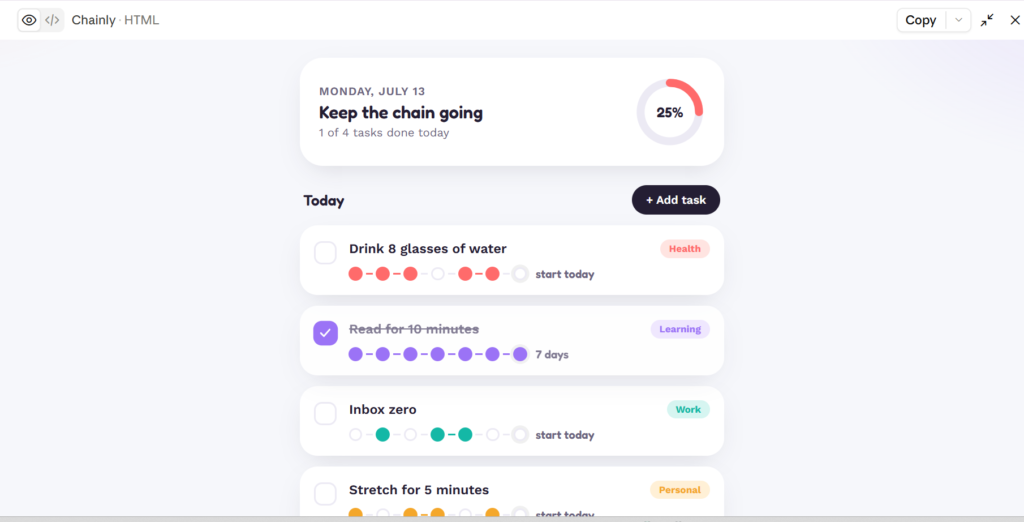
But the real power is building your own. For example: describe a request like “Build an interactive to-do list tracker where I can add tasks, mark them as priority — urgent, important, or later — set a deadline for each, and check them off once done. Show a small progress bar at the top for how many tasks are completed today.” Add a note about style — clean, minimal, with a light theme — and hit enter.
Within a minute or so, a fully functional, interactive to-do tracker appears. Add tasks, mark them done, and the progress bar updates live. And the best part — you can publish this artifact and share the link with anyone, so it’s not stuck inside your chat. It becomes a real, working tool anyone can access online, built entirely from one prompt, for free.
Skills: Train Claude Once, Use It Forever
Claude Skills are folders of instructions that loads dynamically to get better at a specific type of task. In plain terms: you train Claude once to do a particular kind of job, and you never have to repeat those instructions again.
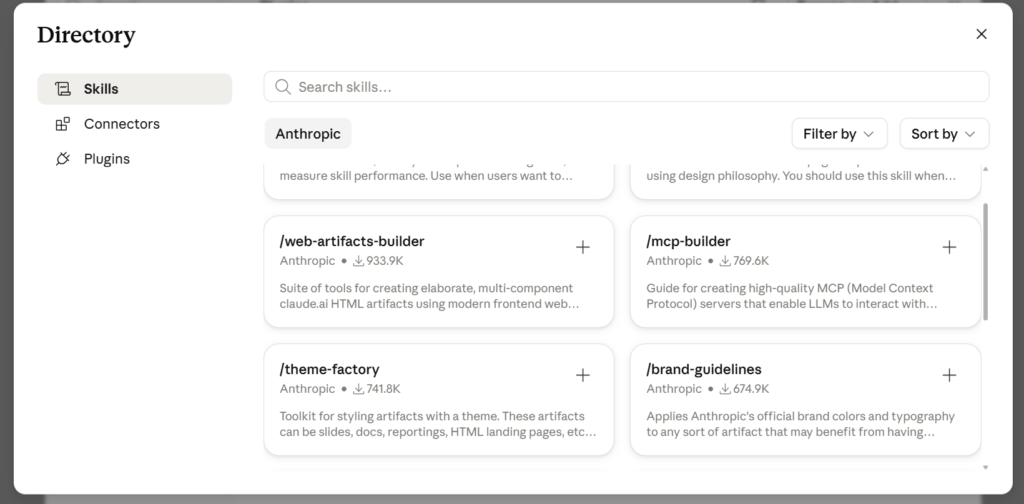
Head to Customize → Skills in the sidebar. There’s a default “Skill Creator” skill already installed, and you can browse a marketplace of pre-built skills or create your own.
Here’s a practical example: creators who want to turn one long YouTube video into multiple short clips. You can create a skill by describing it: “Create a skill that takes a YouTube video link or script as input and recommends five short video content ideas that can go viral.” Claude will ask a few follow-up questions — which platforms to optimize for, what the output format should look like, what kind of content this is mostly for — and then build the entire skill itself, complete with a test run to confirm it works.
Once it’s created, you don’t even need to explicitly reference the skill by name. You can just say something like “give me viral short ideas from this video,” and it automatically recognizes which skill applies and uses it.
One practical limitation: Claude can’t directly open YouTube links the way Gemini can. The workaround is simple — use a free YouTube transcript tool to grab the video’s script, paste that into Claude along with your request, and it works just as well.
Projects: Keeping Your Work Organized
Projects are essentially folders where you can group multiple related chats. Inside a project, you can add instructions specific to that folder and upload files that every chat within it can access — but nothing outside it can see.
For example, you might set up a “Content Creation” project and add an instruction like: “Instagram scripts should be in English, YouTube scripts should be in Hindi.” Once that’s set, every chat inside that project follows the rule automatically — no need to repeat it.
You can also upload reference files — scripts, brand kits, media kits — that stay relevant only within that project. It’s a clean way to separate different areas of your work: content creation, a specific business, your personal life, whatever domains you’re juggling.
Connectors: Bringing Your Other Apps Into Claude
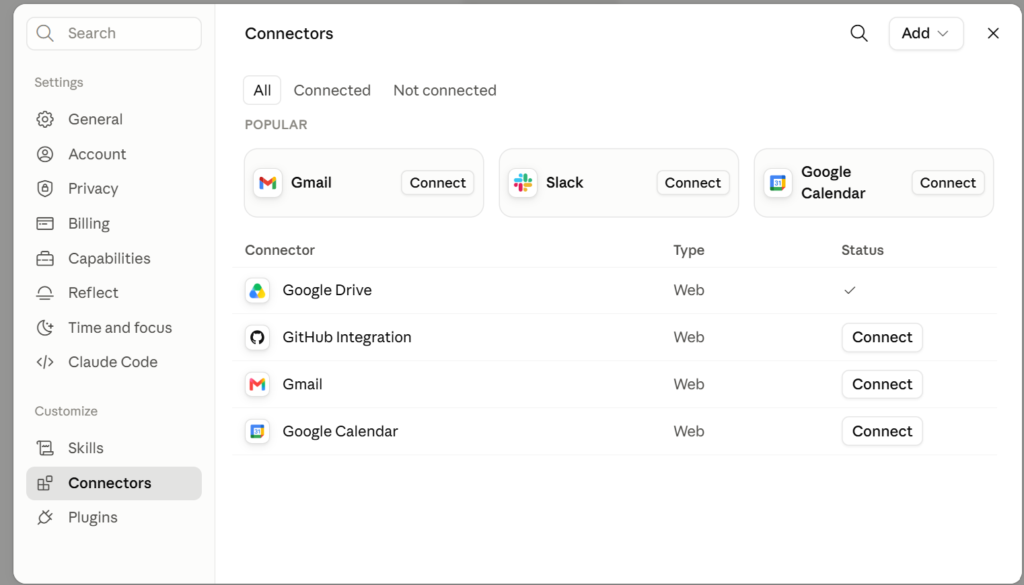
Connectors let you integrate outside applications directly into Claude. Head to Customize → Connectors, and you’ll see options like Google Drive and GitHub by default, with many more available to add — Google Calendar, Slack, Gamma, and others.
Once connected, you control exactly what permissions Claude has. For something like Google Calendar, you can allow read-only actions (finding meetings, checking free time) without any approval needed, while anything that creates changes — like creating or deleting an event — requires your explicit approval each time, unless you choose to pre-authorize it.
Once set up, you can just ask Claude things like “what meetings do I have today?” or “create a meeting with these people at 1pm,” and it’ll interact with your actual calendar in real time.
Bringing Your ChatGPT or Gemini History Into Claude
If you’ve been using ChatGPT or Gemini for a while, you probably don’t want to explain your entire background to Claude from scratch. Good news — you don’t have to.
Go to Settings → Capabilities → Import Memory from Other AI Providers. Claude gives you a ready-made prompt to copy and paste into your existing AI chatbot. That chatbot will respond with a compressed summary of everything it knows about you. Copy that response, paste it back into Claude, and click “Add to Memory.” Just like that, Claude now has the context your other AI tools had built up.
A Quick Word on Claude Code and Claude Cowork
Two features worth knowing about, even though they’re part of the paid plans:
- Claude Cowork is like an AI agent living inside your computer — it can access your files, use applications, and complete tasks on your behalf, even from your phone.
- Claude Code is an agentic coding tool that can read your codebase, edit files, run commands, and integrate with your development tools — usable through the terminal, an IDE, the desktop app, or the browser.
In short: use Claude (free) for research, analysis, and writing. Use Claude Code for building and coding. Use Claude Cowork for organizing files and automating tasks.
The Real Takeaway
Most people use Claude the same way they’d use any basic chatbot and never realize how much more is available. Personal preferences, well-structured prompts using the AIM framework, Artifacts, Skills, Projects, and Connectors — together, these turn Claude from “just another AI chat” into something closer to a genuine productivity system. And the best part is that nearly all of it is available for free.

2 thoughts on “7 Claude AI Features That Make You 10x More Productive”