
We’ve all experienced the frustration of hitting an email attachment limit just as we’re trying to send an important project. Fortunately, utilizing a reliable smash file transfer can completely eliminate this headache. If you are looking for a fast, secure, and intuitive way to share heavy files without signing up for an account, the smash file transfer service is exactly what you need. In this blog post, we will explore everything you need to know about this platform, including its core features and a step-by-step guide on how to use it.
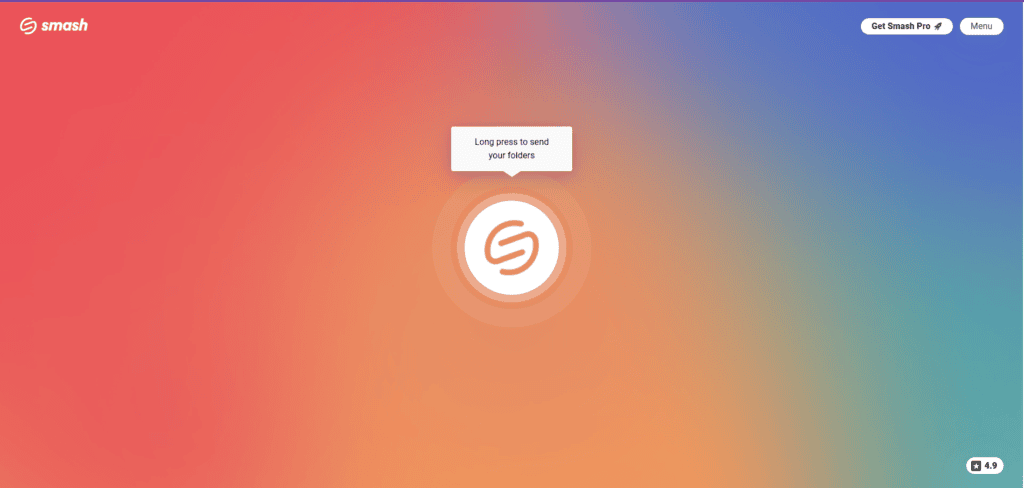
Available at fromsmash.com, this tool is designed to make data sharing as seamless as possible. Unlike traditional cloud services that restrict you behind paywalls or forced sign-ups, this platform allows you to move your files quickly and safely. With a stunning 4.9 Trustpilot rating and over 8 million users worldwide, it has quickly become a favorite tool for professionals and casual users alike who want an efficient smash file transfer experience.
Table of Contents
Here is a breakdown of its features and a step-by-step guide on how to use it.
Key Features of Smash File Transfer
What makes Smash file transfer stand out in a crowded market of file-sharing tools? Here are the features that make it a go-to platform:
- No Registration Required: You don’t need to waste time creating an account or filling out forms just to send a quick file on the free plan.
- Generous Free Tier: You can send files and folders up to 2 GB per transfer completely free.
- No AI Training: Your uploaded data remains strictly yours. Smash explicitly states they do not use your files to train artificial intelligence models.
- File Previews: Before downloading massive files blindly, recipients can actually preview images, videos, and documents directly on the download page.
- Robust Security: Smash protects your files with 256-bit AES encryption both in transit and at rest. It also constantly scans for malware, ransomware, and phishing threats.
- Password Protection: Even on the free tier, you can secure your file transfers by adding a unique password that your recipient must enter to download the files.
- Eco-Friendly Sharing: Sending files via Smash reduces your digital carbon footprint, saving up to 90% CO2e compared to sending heavy files as standard email attachments.
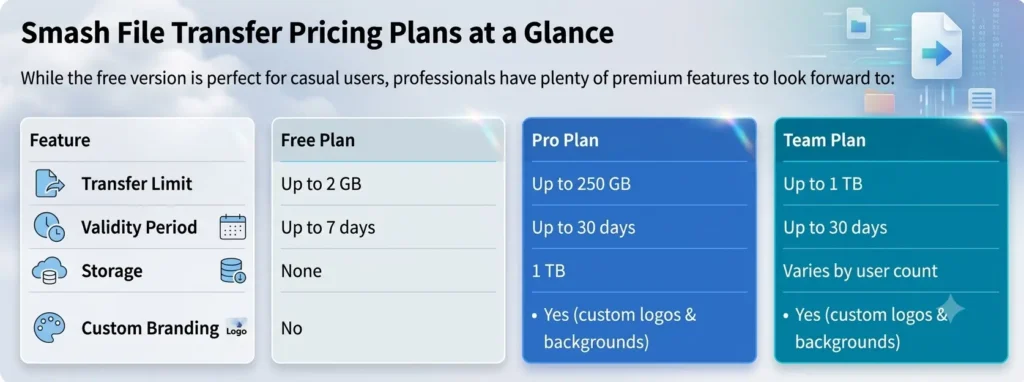
Smash File Transfer Pricing Plans at a Glance
While the free version is perfect for casual users, professionals have plenty of premium features to look forward to:
Step-by-Step Guide: How to Use Smash to Send Files
Sharing a file with Smash takes less than a minute. Here is exactly how to do it:
Step 1: Upload Your Files
- Head over to fromsmash.com.
- Click the “Start now” button or directly click the large central Smash (S) logo.
- Select the file or folder you want to send from your device’s file explorer.
Step 2: Choose Your Delivery Method
Once your file is selected, you’ll see a side panel with two main options:
- Email: Type your email, your contact’s email, a subject line, and an optional message to send it directly to their inbox.
- Link: Create a shareable URL that you can copy and paste anywhere (WhatsApp, Slack, Discord, etc.).
Step 3: Adjust Transfer Settings (Optional)
Click on the gear icon or the settings area to customize your transfer:
- Set the expiration date (up to 7 days on free).
- Toggle Password protection on and create a password.
- Choose whether you want to be notified by email when the transfer is created, downloaded, or if it goes undownloaded.
Step 4: Verify and Generate Link
- If choosing the link option, input your email address for tracking purposes.
- For security, Smash will send a 6-digit verification code to your email. Enter this code on the screen and click Verify.
- Click “Get a link” (or “Send” if using the email method).
Step 5: Copy and Share!
Watch the progress bar hit 100%. Once finalized, click “Copy link” and share it with whoever needs it!
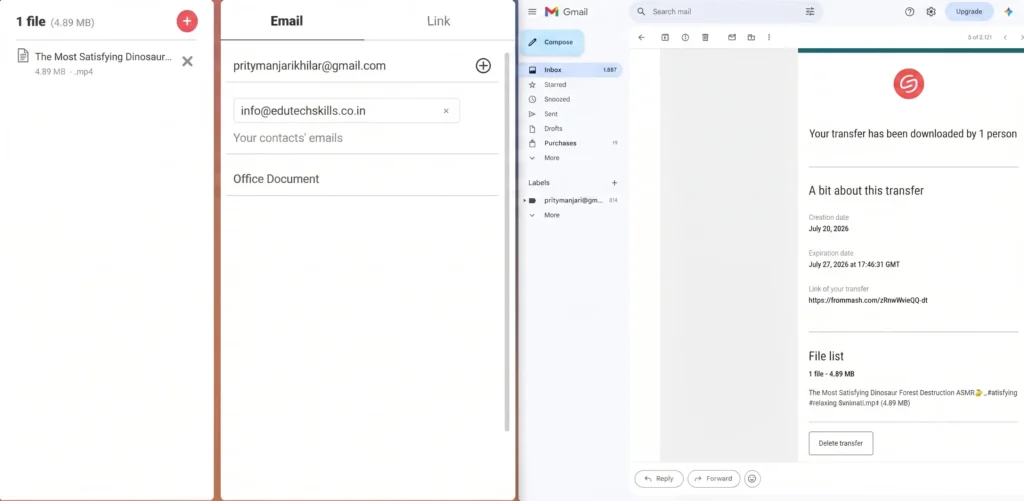
How Recipients Download Your Files
Downloading is just as effortless as sending:
- The recipient clicks the Smash link you sent them.
- They will see a clean download page where they can preview the files beforehand.
- They simply click the central “Click to download your files” button, and the download begins instantly.
No sign-ups, no tracking cookies required, and absolutely no hassle!
Here is how an user can use Smash file transfer easily for his/her daily needs.
Smash vs WeTransfer vs Google Drive: Which Wins in 2026?
These three solve different problems — the “best” one depends on whether you need a quick send or permanent storage.
| Smash | WeTransfer | Google Drive | |
|---|---|---|---|
| Free tier | Unlimited transfers, 2 GB priority, 7-day expiry | 3 GB/month, 10 transfers, 3-day expiry | 15 GB shared storage, no expiry |
| Entry paid plan | Pro — ~$10/mo, 250 GB, 30-day expiry | Starter — $6.99/mo, 300 GB/month | ~$1.99–2.99/mo, 100–200 GB |
| Files expire? | Always (7–30 days) | Yes, on most plans | No — persistent storage |
| Password protection | Every plan, including Free | Free & paid plans | Link-level controls only |
| Best for | Fast, large one-off sends | Simple sends, creative teams | Ongoing storage & collaboration |
If you’d like to learn about alternative file transfer platforms like ShareDrop.io and PairDrop, don’t forget to browse our other blog posts!
5 Myths About Online File Transfer Tools, Debunked
| Myth | Reality |
|---|---|
| “Free tools aren’t secure” | Encryption and password protection are standard on reputable free tiers, Smash included |
| “Large files lose quality in transfer” | Transfer tools send files byte-for-byte — they don’t compress; quality loss comes from the source file, not the service |
| “Recipients need an account to download” | Almost never true — a link is all it takes on Smash, WeTransfer, and similar tools |
| “Once sent, a file is out there forever” | The opposite — most services auto-delete after 7–30 days, so these tools aren’t a backup solution |
| “All file transfer tools are the same” | Ephemeral transfer (Smash, WeTransfer) and persistent storage (Google Drive) are fundamentally different models |
FAQ
Is Smash free to use? Yes — unlimited transfers, 2 GB priority size, 7-day link expiry, no account required.
Does it compress files? No. Files transfer in their original format and resolution.
How long do links last? 7–30 days depending on plan, then files auto-delete.
Smash or WeTransfer? Smash’s free tier is more generous; WeTransfer’s paid Ultimate plan goes bigger (up to 1 TB) once you’re paying.
Good for business use? Yes — Team and Enterprise add multi-user admin, branding, SSO, and (Enterprise only) a custom domain.
Final Thoughts
Smash is a fast, low-friction way to send oversized files for a short, defined window — its free plan is genuinely competitive, and Pro/Team scale nicely for small teams. It’s not built for permanent storage or deep collaboration; that’s Google Drive’s lane. Match the tool to the job and you’re set.