
Learn Microsoft Copilot from absolute basics with real-life examples. Whether you’re a student, professional, teacher, business owner, or content creator, this guide will help you confidently start using Microsoft Copilot.
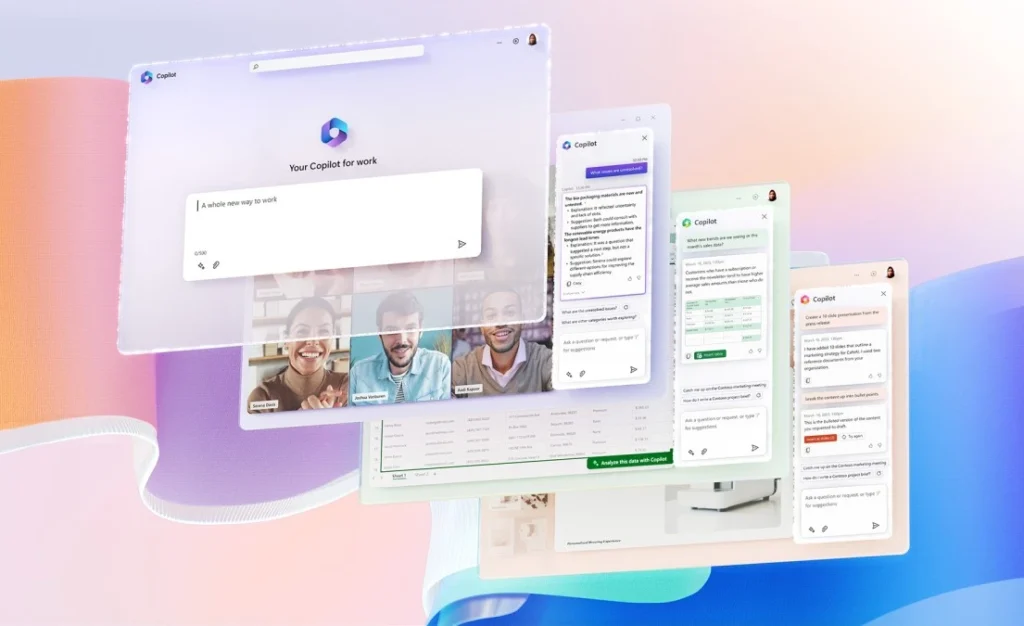
Table of Contents
What is Microsoft Copilot?
Imagine you’ve just hired a highly skilled assistant.
This assistant never gets tired, can read documents in seconds, write professional emails, explain difficult concepts, create images, generate code, and even help you prepare presentations.
That’s exactly what Microsoft Copilot aims to be.
Microsoft Copilot is an AI-powered assistant developed by Microsoft that helps people complete everyday tasks faster and more
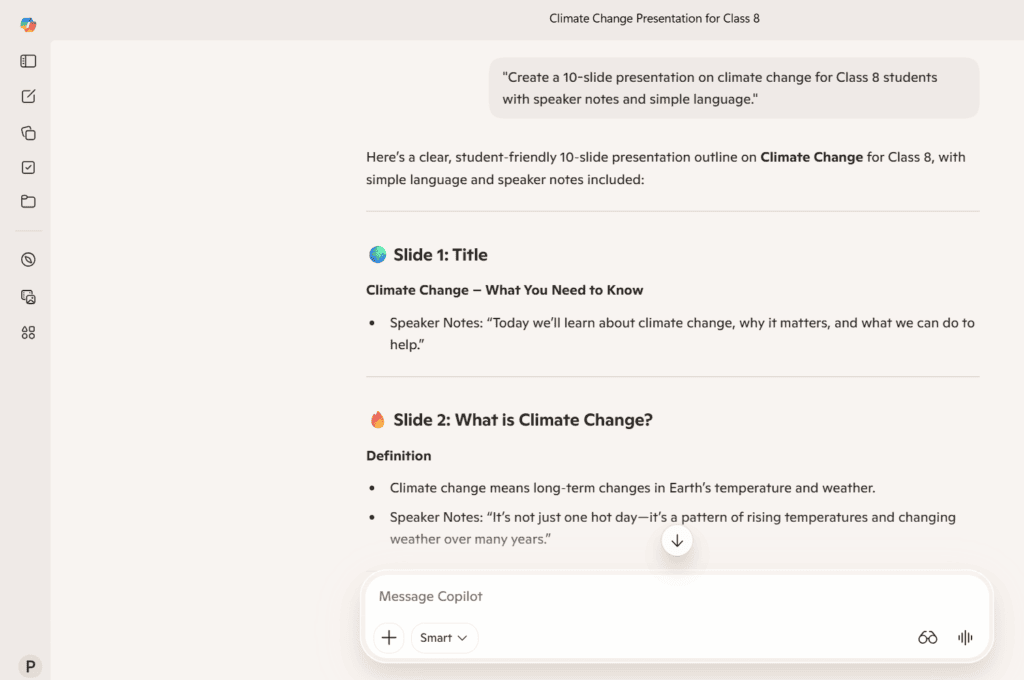
efficiently. Instead of searching through multiple websites, opening several applications, or spending hours formatting documents, you can simply ask Copilot in natural language. Instead of spending an hour creating a presentation about climate change, you could ask:
For example:
“Create a 10-slide presentation on climate change for Class 8 students with speaker notes and simple language.”
Why Has Microsoft Copilot Become So Popular?
Artificial Intelligence is no longer limited to scientists or software engineers.
Today, students use AI to study, teachers create lesson plans, businesses write reports, developers generate code, and creators brainstorm content ideas.
Microsoft recognized that millions of people already spend their day using Windows, Word, Excel, PowerPoint, Outlook, and Teams. Instead of building AI as a separate tool, it integrated Copilot into this ecosystem, making AI available where people already work. This integration is one of the reasons Copilot has gained significant attention. The tutorial transcript you shared also highlights how Copilot connects with Microsoft apps and can assist with writing, presentations, coding, image generation, and document analysis.
A Simple Example Anyone Can Understand
Let’s say your school teacher gives you this homework:
Prepare a project on the Solar System.
Traditionally, you might:
- Search Google
- Visit multiple websites
- Read lengthy articles
- Copy notes into a notebook
- Find suitable images
- Design the project
This could easily take two to three hours.
Now imagine using Copilot.
You could ask:
“Explain the Solar System to a 10-year-old. Include interesting facts, a comparison table of the planets, five quiz questions, and a simple project outline.”
Within seconds, Copilot provides a draft that you can verify, personalize, and expand. The key difference is that AI speeds up the first draft—it doesn’t replace your judgment or creativity.
Who Should Use Microsoft Copilot?
Many people assume AI is only for programmers.
That’s no longer true.
Students
Use Copilot to:
- Summarize chapters
- Create study notes
- Generate quizzes
- Practice interview questions
- Understand difficult topics
Teachers
Teachers can:
- Prepare lesson plans
- Create worksheets
- Generate classroom activities
- Build presentations
- Draft parent communications
Office Professionals
Daily tasks become easier:
- Professional emails
- Reports
- Meeting summaries
- Excel formulas
- Presentations
- Documentation
Business Owners
Business owners can use Copilot to:
- Write marketing content
- Create proposals
- Draft customer emails
- Generate business ideas
- Plan campaigns
Content Creators
Whether you create YouTube videos or blogs, Copilot can help with:
- Video ideas
- SEO-friendly titles
- Descriptions
- Blog outlines
- Social media captions
- Thumbnail ideas
Developers
Copilot can assist with:
- Writing code
- Explaining code
- Fixing errors
- Learning new programming languages
- Understanding algorithms
Microsoft Copilot vs ChatGPT vs Gemini
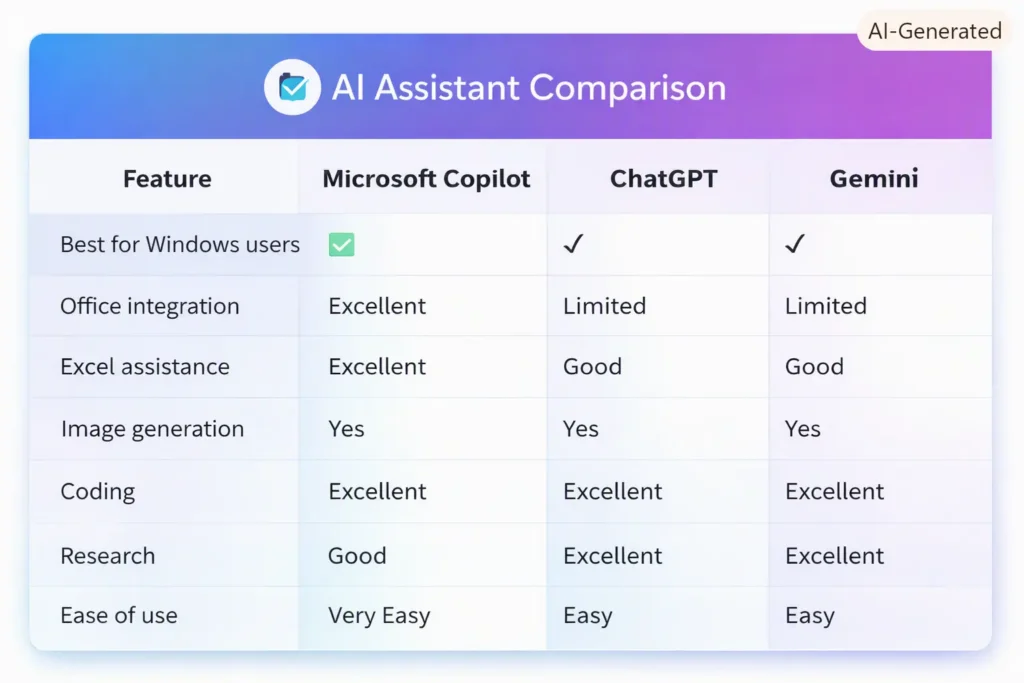
There isn’t a single “best” AI for everyone. The right choice depends on your needs. If you spend much of your day in the Microsoft ecosystem, Copilot offers a particularly smooth experience.
Is Microsoft Copilot Free?
Yes, Microsoft offers a free version that is suitable for many everyday tasks.
With it, you can typically:
- Chat with AI
- Ask questions
- Summarize text
- Generate ideas
- Solve complicated math problems
- Live conversation
- Create images (subject to usage limits)
- Draft emails
- Generate code
- Analyze documents
- make presentation outlines and overview
- create icons for website or deck
- Edit your design with integrated microsoft designer
Some advanced capabilities and higher usage limits may require a paid subscription, depending on your region and the version of Copilot you use.
For most beginners, however, the free version is more than enough to start learning.
How to Create a Microsoft Account
Before using Copilot, you’ll need a Microsoft account.
If you already use services like Outlook, OneDrive, Xbox, or Microsoft 365, you likely already have one.
Creating an account is straightforward:
- Visit Microsoft’s sign-up page.
- Enter your email address.
- Create a password.
- Verify your identity using the code sent to your email or phone.
- Sign in.
The transcript also emphasizes that signing in with a Microsoft account is one of the first steps before accessing Copilot and changing language preferences.
Ways to Access Microsoft Copilot
One of the biggest advantages of Copilot is flexibility. You can use it in several ways:
On Windows
Many recent Windows devices include Copilot or provide quick access through Microsoft.
In Your Web Browser
Simply open your browser, sign in with your Microsoft account, and start chatting.
On Android
Install the Microsoft Copilot app from the Play Store.
On iPhone
Install it from the App Store and sign in.
This means you can continue the same conversation whether you’re on your laptop at work or your phone while commuting.
Understanding the Copilot Interface
When you first open Copilot, the interface may seem unfamiliar.
Don’t worry—it becomes intuitive after a few minutes.
New Chat
Start a fresh conversation.
Chat History
Return to previous conversations.
Attachment Button
Upload:
- PDFs
- Images
- Word documents
- Other supported files
Prompt Box
This is where you type your questions or instructions.
The transcript demonstrates using the attachment option to upload PDFs and other files before asking Copilot to summarize or analyze them.
If you also enjoy learning through audio, check out our guide on using NotebookLM Audio Overview feature to turn documents, PDFs, and notes into AI-generated podcast-style conversations.
Your First Conversation
Don’t overthink it.
Start simple.
Try questions like:
- What can you help me with?
- Explain Artificial Intelligence in simple words.
- Give me five healthy breakfast ideas.
- Plan a one-day trip to Delhi.
- Write a polite email requesting leave.
Notice how natural these requests are. You don’t need programming knowledge. You simply write the way you speak.
Your First Prompt
Many beginners type:
Write an article.
Copilot can do that—but the result may be generic because it lacks context.
Instead, try something more specific:
You are an experienced technology writer. Write a beginner-friendly 1,500-word article explaining what Microsoft Copilot is. Use simple English, include real-life examples, comparison tables, FAQs, and a friendly tone.
The second prompt gives Copilot a role, audience, format, and objective. The transcript repeatedly shows how assigning a role such as “professional YouTube script writer” or “expert content creator” produces stronger results.
10 Real-Life Things You Can Do with Copilot Today
Here are practical ways to get started:
- Draft a professional email.
- Summarize a PDF.
- Create a presentation outline.
- Explain a difficult science topic.
- Generate practice quiz questions.
- Improve your resume.
- Write a cover letter.
- Brainstorm YouTube video ideas.
- Create a blog outline.
- Generate an image prompt.
These are only the beginning. In later articles, we’ll explore each area in detail.
Common Beginner Mistakes
Mistake 1: Asking very short questions
Instead of:
Resume
Try:
Create an ATS-friendly resume for a marketing professional with five years of experience.
Mistake 2: Expecting AI to know everything
Always provide enough background information for the task.
Mistake 3: Accepting the first answer
Review, edit, and personalize the response. AI is a drafting partner, not an infallible source.
Mistake 4: Sharing sensitive information
Avoid entering passwords, banking details, or confidential company information unless you’re using an approved, secure environment and understand your organization’s policies.
Final Thoughts
Microsoft Copilot isn’t just another chatbot—it’s a versatile AI assistant designed to help you learn, create, and work more efficiently. Whether you’re writing emails, preparing for exams, creating presentations, or brainstorming content, Copilot can save time by handling repetitive drafting tasks so you can focus on thinking and refining.
The best way to learn is by using it regularly. Start with simple questions, practice writing better prompts, and gradually explore more advanced features.
This article covered the fundamentals: what Copilot is, who it’s for, how to access it, and how to begin using it effectively. In the next article, we’ll dive deeper into Prompt Engineering, where you’ll learn how small changes in your instructions can dramatically improve the quality of Copilot’s responses.

1 thought on “Microsoft Copilot Complete Beginner Guide (2026): The Complete Walkthrough for First-Time Users”