
Juggling five different platforms just to generate a product photo, write copy, and edit a video clip gets old fast. Google AI Studio quietly replaces most of that stack with one free, browser-based tool — and most people have never even opened it.
This Google AI Studio tutorial for beginners walks through exactly how to set it up, which features actually move the needle for e-commerce, and five practical ways to automate the parts of your business that eat up your time.
Quick answer: Google AI Studio is a free, no-code web platform (aistudio.google.com) that gives you access to Google’s Gemini models for image generation, app building, video creation, and live voice/screen analysis — no credit card or installation required.
Table of Contents
What Is Google AI Studio?
Google AI Studio is Google’s browser-based workspace for building with Gemini models. It handles professional image generation, no-code app development, and cinematic video ads, all in one browser-based tool.
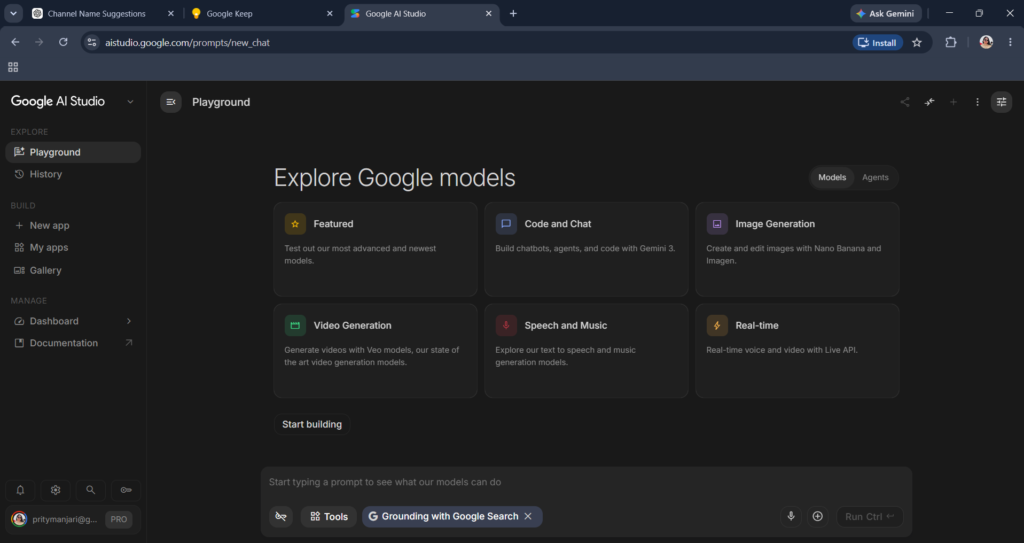
There’s nothing to install and no payment card needed to get started — you just need a Google account.
How to use google ai studio ?
Here’s the exact setup path to google ai studio login :
- Go to aistudio.google.com
- Sign in with any Google account (no credit card required)
- Look at the left sidebar: Home, Playground, Build, and Dashboard
- Click Playground — this is where you’ll spend most of your time
The Playground’s “Explore Google models” screen sorts everything into six categories: Featured, Code and Chat, Image Generation, Video Generation, Speech and Music, and Real-time. There’s also an Agents tab next to Models, with prebuilt templates like Data Analyst and Customer Support for people who don’t want to start from a blank prompt.
Which Gemini Models Matter Right Now
| Category | What It Does | Best For |
|---|---|---|
| Featured | Newest, most capable models (Gemini 3 Pro, Gemini 3 Flash) | Text, chat, code, multimodal tasks |
| Gemini (core) | Text plus images, files, structured data | Building agents, tools, app backends |
| Live | Real-time audio, video, and text streaming | Voice conversations, screen sharing |
| Images | Nano Banana and Nano Banana Pro | Product photos, banners |
| Video | Veo models | Short cinematic clips with native audio |
| Audio | Text-to-speech, music, voice agents | Voiceovers, sonic branding |
Get your API key before you go further. Click Get API Key in the bottom-left corner, then Create API Key → Create API Key in new project. Copy it somewhere safe and never share it publicly — it’s your gateway to using Gemini inside your own website or app later. The free tier gives generous limits for testing.
Feature 1: Generate Product Photos Without Photoshop
Click Playground and select the Images tab. You’ll see three model options:
- Nano Banana — standard image generation (built on Gemini 2.5 Flash Image), fast and reliable for quick generations
- Nano Banana Pro — Google’s most advanced option, built on Gemini 3 Pro Image, with better text rendering, 4K resolution, and finer detail (free users get a limited daily quota before it reverts to standard)
- Imagen 4 — optimized specifically for photorealistic shots with clean text rendering, so images look like real photographs
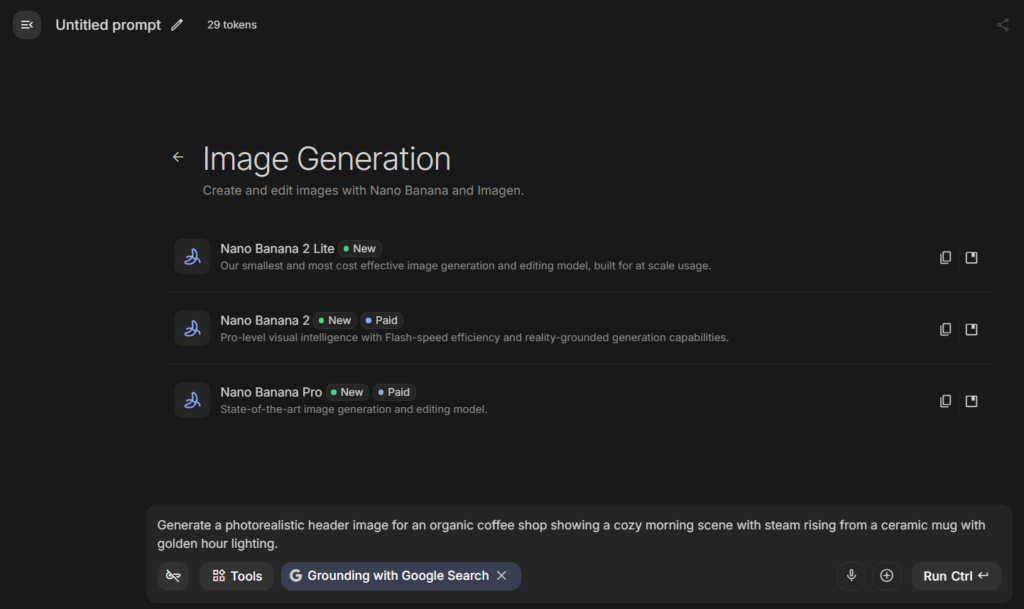
Try this prompt:
“Generate a photorealistic header image for an organic coffee shop showing a cozy morning scene with steam rising from a ceramic mug with golden hour lighting.”
Set the aspect ratio (16:9 works well for headers), choose a resolution between 1K and 2K, and hit Run.
You can also edit existing photos. Upload a product shot, then type something like “remove the logo from the shirt and keep the texture natural.” The edit keeps the fabric texture intact while cleanly removing the unwanted element — a task that would normally mean opening Photoshop.
Worth knowing: free-tier generations carry a visible Gemini watermark. Google AI Pro and Ultra subscribers get higher limits, and only Ultra tier removes the watermark entirely.
Feature 2: Lock In a Brand Voice With System Instructions
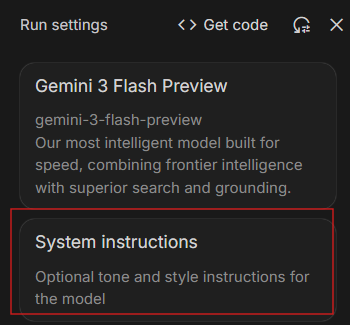
If you’re tired of retyping the same tone instructions in every prompt, System Instructions fix that permanently.
Start a fresh Playground session and click the system instructions box in the upper right. Set a persistent personality — for example, a luxury brand copywriter voice that avoids emojis and hype, favors sensory detail, and positions products as timeless rather than trendy. Name it and save; it applies automatically to every message in that session going forward.
Competitor Analysis, Built In
Click the Tools button at the bottom of the page and paste a competitor’s product page URL. Ask it to break down what’s working visually, what’s weak or outdated in the copy, and where the gaps are that you could fill. This is especially useful when entering a new niche — see what’s already converting, then build something that closes the gaps.
Feature 3: Talk to Gemini About Your Screen
This is the feature that feels genuinely new. Gemini Live lets you share your screen and have a real-time voice conversation about what it sees — no typing.
Navigate to the Live section (aistudio.google.com/live) and pick one of three modes:
- Talk — voice only
- Webcam — includes video of yourself
- Share screen — shows your display
Select Share screen, choose the tab with your store, and just start talking: “Act as a conversion rate optimization expert. Look at this product page and tell me three specific reasons a customer might hesitate to buy.” Gemini responds by voice, referencing actual visual elements — button placement, copy issues, trust signals.
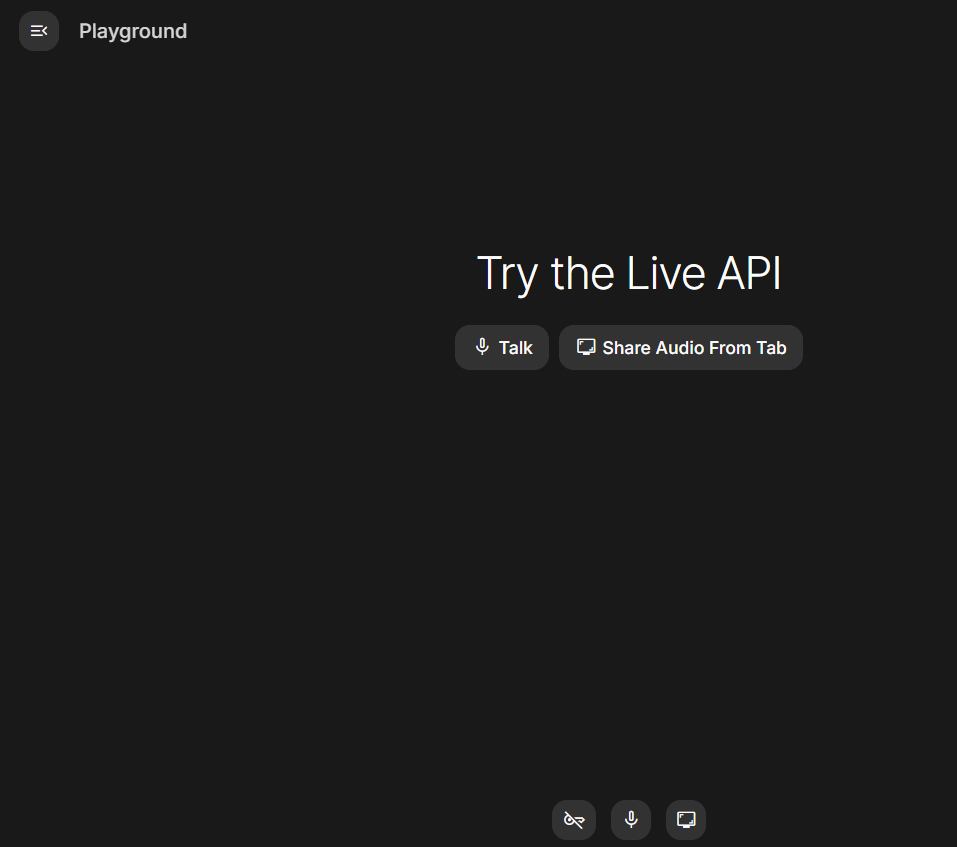
Gemini Live is available in 45+ languages across 150+ countries on mobile, with screen sharing available on desktop through Google AI Studio
Feature 4: Build a Working App with AI Studio Without Code (Vibe Coding)
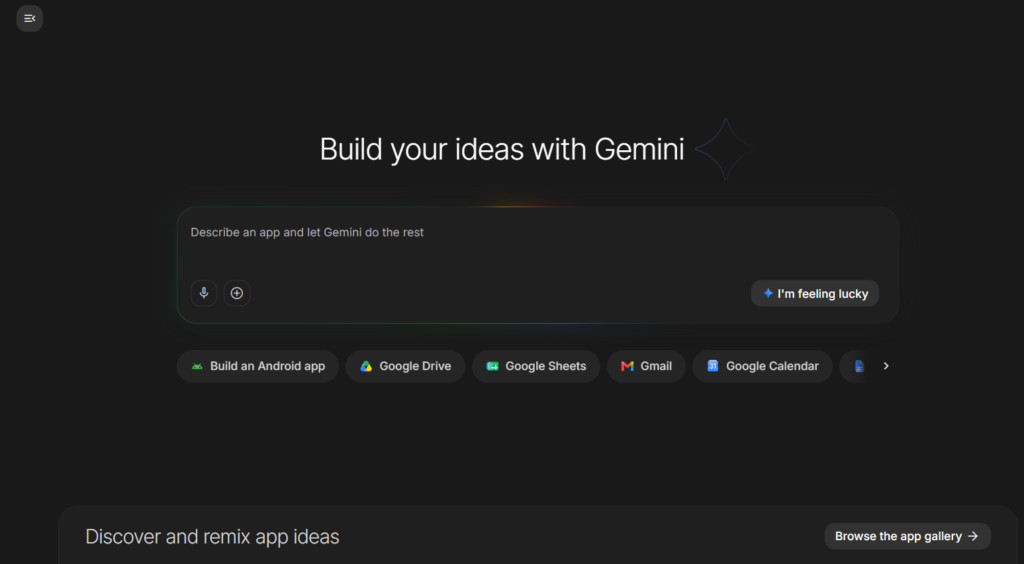
Click Build in the left sidebar. Describe your app idea in plain English, or click I’m feeling lucky for inspiration.
Pro tip: if you’re not sure how to phrase your request, go to Playground first and ask Gemini to help you write the prompt. For example:
“Help me write a prompt for Google AI Studio to create an app that takes a YouTube video transcript and turns it into three optimized social media posts for LinkedIn, Facebook, and Instagram.”
Copy the refined prompt into the Build input and click Build. The preview appears on the right in real time; switch to the Code view to watch it generate, or click On device to preview mobile/tablet layouts.
Test it by pasting a sample transcript. Want another feature? Just type it in the chat — for example, “add a character count for each post” — and the app updates live. When you’re happy, click Save, or deploy straight to Google Cloud Run for a shareable live URL.
Feature 5: Cinematic Video Ads With Veo
Click Home, then find the Veo video generation option. This one’s a paid feature — you’ll need billing enabled on your API key’s Cloud project, or a Google AI Pro/Ultra subscription. Pro gives limited access to Veo 3.1 Fast; Ultra unlocks the full Veo 3.1 model.
Browse the gallery first — clicking any sample shows the exact prompt used, which is a fast way to learn what actually works.
Try this prompt:
“Cinematic close-up of a sleek luxury brown leather wallet rotating slowly on a marble surface. Golden hour lighting, soft shadows, bokeh background.”
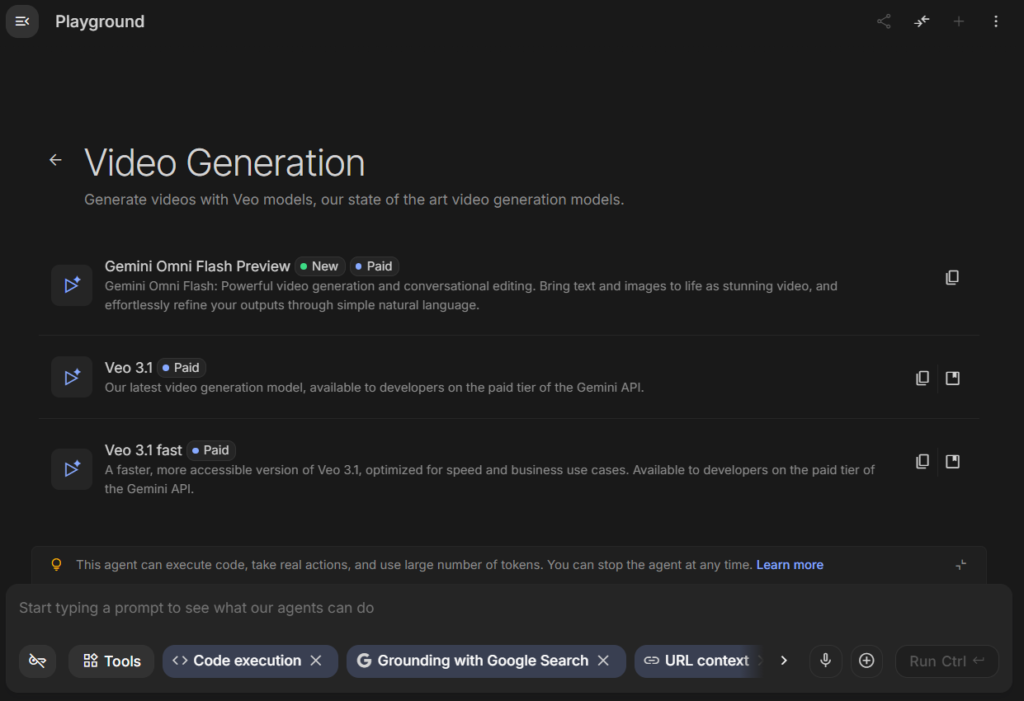
Generation typically takes 30 seconds to a couple of minutes. Veo 3.1 automatically adds matching ambient sound, so there’s no separate audio pass needed. Clips run 4, 6, or 8 seconds — ideal for homepage banners, hero sections, or social ads.
There’s Still a Lot More Google AI Studio Can Do
Everything covered so far only scratches the surface — this has been a tour of Model mode, where you talk directly to Gemini models one prompt at a time. Google AI Studio also has an entire Agent mode, visible right on the Playground screen under the Agents tab, with templates like Data Analyst, Customer Support, and Repo Maintainer that can carry out multi-step tasks on their own. That’s a big enough topic to deserve its own guide, so we’ll break down Agent mode in detail in our next blog.
As we are discussing about Google AI Studio Tutorial for Beginners, we can’t cover all here. For now, the real unlock is practice. Nano Banana, Vibe Coding, Veo, and Gemini Live all get noticeably better the more you experiment with prompts, tweak system instructions, and test edge cases on your own products. Don’t stop at one generation — run the same prompt with small changes, compare outputs, and build a feel for what works for your brand. The more time you spend inside Google AI Studio, the more of its full potential you’ll actually be able to use.
Quick Recap: What This Google AI Studio Tutorial for Beginners Covered
| Task | Old Way | Google AI Studio Way |
|---|---|---|
| Product photography | Photoshop + photographer | Nano Banana / Imagen 4 prompt |
| Brand-voice copy | Rewriting the same brief repeatedly | System Instructions (set once) |
| Competitor research | Manual browsing + notes | Tools + URL analysis |
| Site feedback | Hiring a CRO consultant | Gemini Live screen share |
| App development | Hiring a developer | Vibe Coding in Build |
| Video ads | Production team + budget | Veo prompt-to-video |
For deeper research and document analysis, pair Google AI Studio with Google NotebookLM — Google’s AI tool for turning your own notes and files into a searchable knowledge base.
Frequently Asked Questions About Google AI Studio
Is Google AI Studio free or paid? The core Playground features — chat, image generation, app building — are free with generous limits. Paid tiers (Google AI Pro and Ultra) unlock higher quotas, watermark-free images, and full Veo access.
Is Google AI Studio easy to use? Yes. Everything runs in the browser with no installation, and the Build tool lets you create working apps by describing them in plain English rather than writing code.
What can I do using Google AI Studio? Generate and edit images, build no-code apps, create short AI videos with native audio, run real-time voice/screen analysis, and set a persistent brand voice with system instructions.
Can Google AI Studio write code? Yes — the Build (Vibe Coding) tool generates full working application code from a plain-English description, and you can view or download the underlying code at any time.
What is the difference between Google AI Studio and ChatGPT? Google AI Studio is built specifically around Gemini’s model family and bundles image, video, live voice/screen, and no-code app-building tools into one workspace, whereas ChatGPT’s interface is primarily chat-focused with plugins/extensions for other tasks.
How to use Google AI Studio for learning? Use the Playground to ask Gemini to explain concepts, generate practice questions, or walk through code step by step. Pair it with Gemini Live screen-share mode to get real-time voice feedback while you study or practice a new skill.
That wraps up this Google AI Studio tutorial for beginners — from your first google ai studio login to a finished product image, app, and video ad.