
If you’ve spent hours drowning in PDFs, half-read journal articles, and scattered highlights while trying to finish a literature review, NotebookLM for research papers might be the single most useful tool you add to your workflow this year. Built by Google, NotebookLM is quickly becoming the go-to AI research assistant for students, academics, and content writers who need to make sense of large volumes of source material without losing accuracy. In this guide, we’ll cover what NotebookLM actually is, how to use it, its standout audio overview feature, how it stacks up against ChatGPT, and where its limitations lie — along with the best alternatives if it doesn’t fit your needs.
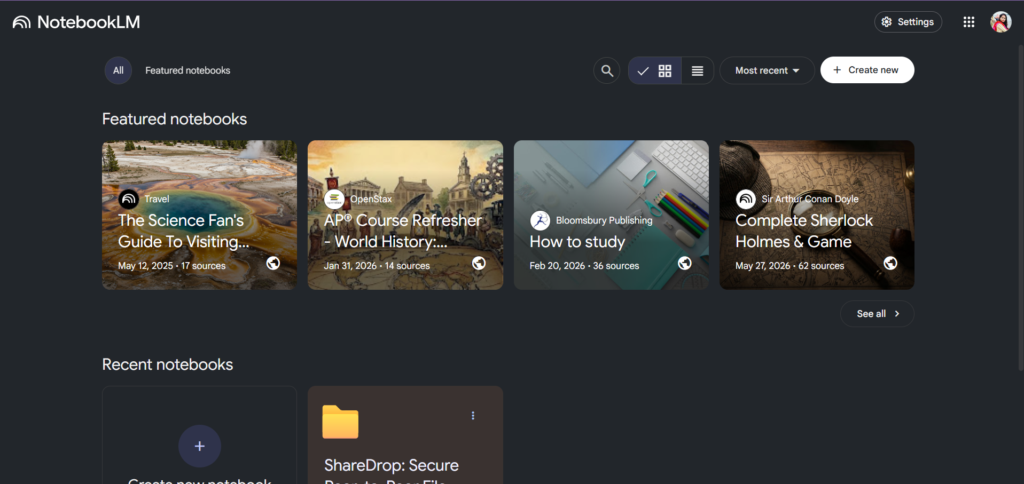
Table of Contents
What Is NotebookLM?
In short: NotebookLM is Google’s AI research assistant that only answers from the sources you give it — your PDFs, Docs, slides, websites, or YouTube transcripts — instead of guessing from general internet knowledge. Every answer comes with a clickable citation pointing back to the exact line in your source, which is why it hallucinates far less than a typical chatbot.
Quick facts:
| Built by | Google, powered by Gemini |
| How it works | Retrieval-Augmented Generation (RAG) — retrieves your source text first, then answers from it |
| Can it use the web too? | Yes — it can search the web to suggest new sources, not just your uploads |
| Privacy | Your documents and chats stay private, not used to train public models |
| Best for | Literature reviews, thesis research, PDF-heavy synthesis |
How to Use NotebookLM for Research Papers
Getting started is refreshingly simple, and yes — NotebookLM is free to use for most individual accounts, with a paid NotebookLM Plus tier for higher usage limits and business features.
- Visit the NotebookLM website and complete NotebookLM sign up using your Google account — there’s no separate registration form.
- Complete NotebookLM login the same way you’d sign into any Google product.
- Click “New Notebook,” then upload your sources — this is the core of how to upload sources to NotebookLM.
- Add your NotebookLM for research papers PDF files directly, or paste in links, Google Docs, website URLs, or YouTube transcripts.
- Use the built-in “Search the web for new sources” option if you want NotebookLM to find and suggest additional relevant sources on your topic instead of only working with what you’ve manually uploaded.
- Once your sources are processed, ask NotebookLM to summarize, extract themes, compare arguments across papers, or generate a structured outline.
- Use the citation links it provides to jump straight back to the original page in your PDF — critical for verifying claims before you cite them in your own paper.
- Save generated notes into the notebook so they build into a running research log you can return to.
Because it’s genuinely free for most academic use cases, NotebookLM for research papers free access makes it an easy tool to test before committing to any paid research software.
The NotebookLM Audio Overview Feature
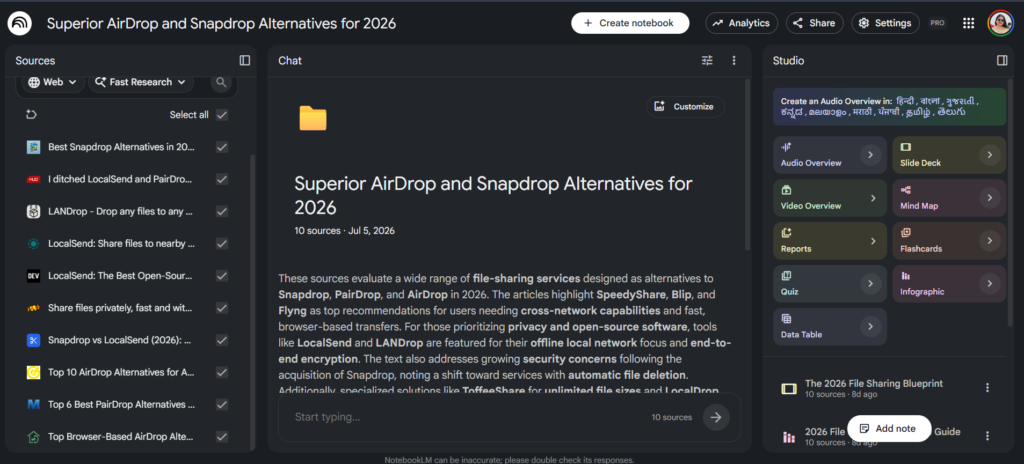
One of NotebookLM’s most talked-about tools is the audio overview feature. After uploading your sources, NotebookLM can generate a podcast-style audio discussion — two AI voices walking through your material conversationally, highlighting key findings, tensions between sources, and open questions. For auditory learners or anyone who wants to “listen” to a literature review while commuting or exercising, this feature has become a genuine differentiator. It won’t replace close reading for a thesis defense, but as a first-pass way to absorb dense material, it’s remarkably effective.
Audio Overview is just one tool inside NotebookLM’s “Studio” panel, which now stretches well beyond audio:
| Studio tool | What it gives you |
|---|---|
| 🎧 Audio Overview | Podcast-style discussion of your sources |
| 🎬 Video Overview | Narrated visual walkthrough of key points |
| 🧠 Mind Map | Visual map of themes and connections |
| 📊 Slide Deck | Auto-generated presentation slides |
| 📄 Reports | Structured written summaries |
| 🗂️ Flashcards & Quiz | Self-testing tools for exam prep |
| 📈 Infographic | Visual one-pager of key data |
| 📋 Data Table | Structured, sortable extraction of facts |
And it’s not English-only — Audio and Video Overviews support several Indian regional languages too, including Hindi, Bengali, Gujarati, Kannada, Malayalam, Marathi, Punjabi, Tamil, and Telugu.
NotebookLM vs ChatGPT for Studying
This is one of the most common comparisons students search for, and the honest answer is: it depends on the task.
| NotebookLM | ChatGPT | |
|---|---|---|
| Grounded in your sources | Yes, strictly | Only if you paste them in |
| Citations to exact source lines | Yes, always | Rarely, and can be fabricated |
| Best for | Synthesizing your uploaded papers | Brainstorming, drafting, explaining concepts |
| Risk of hallucination | Low | Higher, especially without sources |
| Long-form writing help | Limited | Strong |
So which AI is best to write a research paper? Most researchers land on a hybrid workflow: NotebookLM for source analysis, synthesis, and citation-backed summaries, paired with a general model like ChatGPT or Claude for drafting and polishing prose. And if the question is which GPT is best for thesis writing specifically, tools with strong long-context reasoning and citation support — including Claude and GPT-4-class models — tend to outperform smaller models for the sustained, multi-chapter structure a thesis demands.
NotebookLM Limitations and Alternatives
No tool is perfect, and it’s worth being upfront about the disadvantages of NotebookLM before you build your entire workflow around it. NotebookLM’s limits depend on which plan you’re on, but a few caps apply across every tier: each individual source is capped at 500,000 words or 200MB, whichever comes first, and supported file types include Google Docs, PDFs, websites, YouTube URLs, and audio recordings.
Plan-by-plan limits:
| Plan | Built for | Sources per notebook | Generation limits |
|---|---|---|---|
| NotebookLM (Free) | Personal projects | Up to 50 | Standard Audio/Video Overview generations |
| NotebookLM in Plus | Active learning & deep dives | Up to 100 | 2x more generations than free |
| NotebookLM in Pro | Daily research & workflows | Up to 300 | 5x more generations, priority feature access |
| NotebookLM in Ultra | Power users & complex projects | Up to 600 | Up to 50x more generations, no watermarks, priority access |
Daily chat query and Deep Research report caps also scale by plan, roughly from around 50 queries a day on the free tier up to several hundred or more on paid tiers, with Deep Research reports capped somewhere between 10 and 20 per month depending on the subscription. Because Google updates these limits periodically, it’s worth checking the official NotebookLM help center for the current numbers before you plan a large project around a specific cap.
Other limitations worth knowing:
- It’s built as a research and synthesis tool, not a long-form drafting tool — you’ll still want a separate writing workflow for the actual paper.
- Formatting citations into a specific style guide (APA, MLA, Chicago) still requires manual cleanup.
- Very large projects (500+ sources, or sources beyond the per-file word/size cap) will need to be split across multiple notebooks.
These NotebookLM limitations and alternatives matter most once your project scales beyond a single paper. For deeper literature discovery, tools like Elicit, Scite, or Semantic Scholar are stronger at systematically finding and evaluating papers across the wider academic literature. For long-form writing and drafting, ChatGPT or Claude are generally better companions. If your work also involves broader academic search, it’s worth asking which Google is best for research — Google Scholar remains the strongest dedicated discovery engine, while NotebookLM is best used to make sense of the sources you’ve already gathered, even though its own web-search option can now surface additional sources too.
Frequently Asked Questions
Can I use NotebookLM for research?
Yes. It’s specifically designed for research work — summarizing sources, extracting themes, and answering source-grounded questions with citations.
Is NotebookLM good for writing a thesis?
It’s excellent for organizing and synthesizing your source material and generating chapter outlines, but you’ll still want a separate writing tool or your own drafting process for the actual prose.
Can Turnitin detect NotebookLM?
Turnitin’s AI detection tools are built to flag AI-generated writing patterns generally, not any single product by name. If you use NotebookLM to synthesize sources but write your final paper yourself, this is far less of a concern than pasting AI-generated prose directly into your submission.
What are the limitations of NotebookLM?
Mainly per-plan caps on sources per notebook (50 on the free tier up to 600 on Ultra), a 500,000-word/200MB limit per individual source, and no native long-form drafting tool — see the limitations section above for the full breakdown.
Is NotebookLM free?
Yes, the core product is free with generous limits for individual use, with an optional paid NotebookLM Plus tier for heavier or team usage.
Final Thoughts
NotebookLM has carved out a genuinely useful niche: it’s not trying to be a general chatbot, and that focus is exactly what makes it valuable. For literature reviews, thesis research, and making sense of dense PDFs quickly, few free tools come close. Pair it with a general-purpose AI writing assistant for drafting, and you’ve got a research workflow that’s faster, better cited, and far less exhausting than doing it all by hand.
Looking for more AI visual creation tool? Check out our https://edutechskills.co.in/how-to-use-google-flow-a-step-by-step-process/

3 thoughts on “NotebookLM for Research Papers: 7 Proven, Powerful Tips”