
What is JioSphere?
JioSphere, formerly known as JioPages, is a privacy-focused web browser developed by Jio Platforms, built specifically with Indian users in mind. With tens of millions of downloads, it combines privacy tools, deep regional-language support, and a friendly interface into a browsing experience shaped around India’s digital landscape. It’s especially popular for offering a built-in VPN and ad-blocker at no extra cost.
Table of Contents
Devices JioSphere Supports
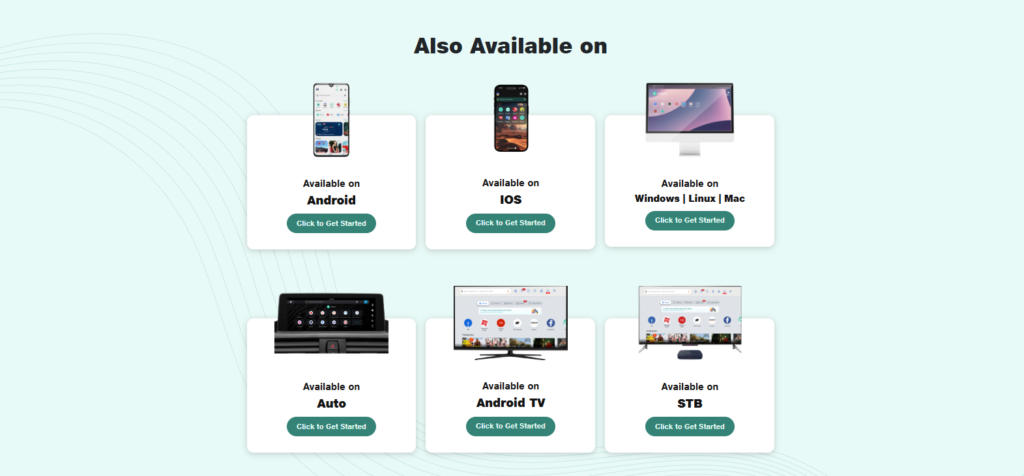
One of JioSphere‘s biggest strengths is how widely it works across screens:
- Smartphones (Android & iOS): It runs smoothly on both Android and iOS phones, offering consistent performance across the two platforms.
- Smart TVs: A dedicated version of JioSphere brings full browsing to Android smart TVs, complete with VPN, ad-blocking, and voice search built in — handy for browsing on the big screen.
- Desktop: Desktop support is a bit of a mixed picture. Some listings mention JioSphere running on desktop, while official sources indicate it’s currently built mainly for Android and iOS mobile devices, with no official Windows, macOS, or Linux version yet — though wider desktop support is reportedly being considered for future releases. It’s worth checking the app’s current version notes if desktop use is a priority for you.
- Cross-device sync: When you sign in with the same account, JioSphere keeps your bookmarks, saved passwords, and browsing history synced across all your devices — so you can move from phone to TV to laptop without losing your data.
How to Get YouTube Premium-Like Features in JioSphere (Ad-Free & Background Play)
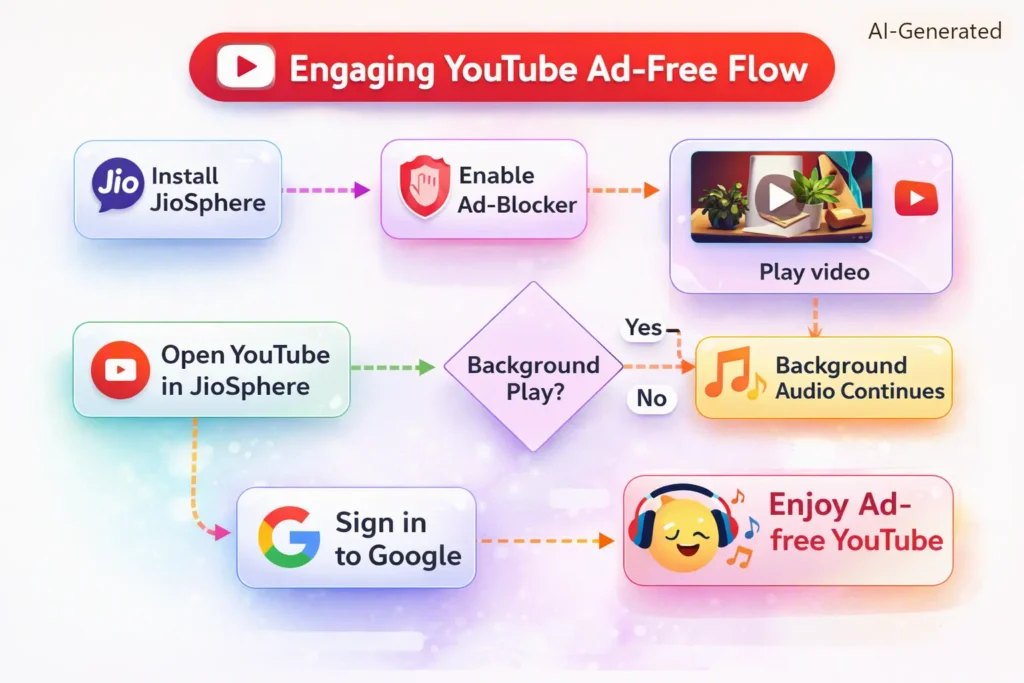
Because JioSphere’s ad-blocker works at the browser level rather than inside individual apps, many users have found that opening YouTube through JioSphere instead of the official YouTube app gives a noticeably smoother, near-Premium-like experience — without paying for a subscription. Here’s how to try it:
- Open the JioSphere app on your phone or smart TV.
- Go to youtube.com by typing it into the browser’s search/address bar (don’t use the separate YouTube app).
- Search for and play any video as you normally would.
- Let the ad-blocker do its work. Since JioSphere’s ad-block engine runs at the browser level, most pre-roll and mid-roll ads on YouTube get blocked automatically, giving a largely uninterrupted viewing experience.
- Minimise the app to keep audio playing. With a video running, tap the home button or switch to another app (WhatsApp, Instagram, etc.) — the video/audio can keep playing in the background, letting you multitask without needing YouTube Premium.
A few things worth knowing:
- This trick works only when watching YouTube through the JioSphere browser, not through the official YouTube app — the ad-blocker doesn’t apply there.
- It’s not 100% ad-free — some ads may still slip through occasionally, and it doesn’t unlock every Premium perk (like offline downloads or YouTube Music Premium).
- Background playback workarounds like this rely on how the video is served through the browser rather than the app, and platforms do periodically tighten restrictions on this kind of behaviour — so it may not always work exactly the same way over time. If you rely heavily on ad-free viewing, offline downloads, or background play across all apps, an official YouTube Premium subscription remains the only guaranteed long-term option.
- Some users report similar ad-free playback when opening other streaming sites (like MX Player or Amazon miniTV) through JioSphere, though results can vary by device and app version.
Full Features of JioSphere
Beyond YouTube viewing, JioSphere packs many browser features focused on security, personalization, and convenience. According to official listings, its features include:
- Built-in VPN: A free VPN tunnel is advertised in JioSphere (currently rolling out gradually). The Android Play listing and TV FAQ mention a VPN (though the TV FAQ says “VPN feature is currently in development”). Once active, it lets you browse with an encrypted connection to access region-blocked content.
- Anti-Tracking / Secure Mode: JioSphere blocks third-party trackers and cookies. The Play store “Secure Mode” blocks fingerprinting and tracking scripts. Its description touts “Anti-tracking protects data privacy, by blocking websites from collecting personal data”, helping avoid targeted ads and privacy risks.
- Ad Blocker: (Already covered.) Built-in ad-block removes web ads and YouTube ads.
- Incognito Mode with PIN: A private browsing mode that doesn’t save history. Unique feature: you can lock incognito tabs with a PIN for extra privacy. This means even your open private tabs can’t be closed by others without the PIN.
- Download Manager: All downloads (images, videos, docs) are organized automatically into categories (Image, Video, Document, etc.). This makes it easy to find files.
- Download / Video Player: The “Watch” or “PlayBox” section (Android) or “PlayBox” feature (on iPhone) lets you save certain web videos for offline viewing. (Note: It cannot grab copy-protected YouTube content, only open web media.) For example, iOS version’s update notes mention “Save from the web, watch or listen offline – on your terms.”
- Multiple Search Engines: Choose your default among Google, Bing, Yahoo, etc.. This is handy for users who prefer non-Google search or regional search engines.
- QR Code Scanner: The iOS store notes a built-in QR and barcode scanner. The Android listing also highlights “QR code scanner”. (Use it to open links from QR codes directly.)
- Voice Search: Hands-free voice query (on mobile) is included. On TV (STB/TeleOS) there is a voice search button in the interface.
- Regional Languages: Supports 8+ (Android TV says 8+; mobile Play store says 21+) Indian languages for the UI and content. Users can browse and get news in Hindi, Tamil, Bengali, etc. (Regional news feeds and cards are part of the home screen.)
- Personalized Home Screen: You can customize the start page with quick links, news cards, and pinned content. For example, choose which categories or search engines appear, pin favorite sites, or see “informative cards” on the home page.
- Dark Mode: Two themes for eye comfort (light and dark).
- Tab Management: Manage multiple open tabs easily. The tab manager feature lets you switch or close tabs smoothly.
- Pin/Unpin Content: On the home screen, you can pin or remove content cards to suit your needs.
- Progressive Web App (PWA) Support: You can add any website (like YouTube) to your device’s home screen as an “app” icon. (The Play Store description mentions an “Add to Home Screen” shortcut feature.) This lets you quickly launch YouTube in JioSphere as if it were an app, useful for background playback.
- JioCoin Rewards (Beta): JioSphere integrates a blockchain-based reward token called JioCoin. Android users earn JioCoins by reading news or watching videos in the browser. (iOS users earn by using the “News” section.) There’s no hard cap on daily earnings. To get JioCoins, you enroll in the JioCoin Rewards program inside the app’s profile. Note: JioCoin is still in beta in India, but when active, it’s a way to “get more” by using the browser. You can check your balance in the profile.
- Other Modes: On TV devices, there are special modes like “Entertainment Mode” (fewer ads on videos) and “Education Mode” (for kids). Mobile versions don’t have these modes, but they exist on big-screen releases.
Overall, the feature set is quite comprehensive – combining privacy tools (VPN, anti-tracking, ad-block), browsing utilities (download manager, QR, voice search), and rewards (JioCoin) – all packaged in an India-centric UI.
How to Manage Ad-Block Settings in JioSphere
- To start using JioSphere and unlock the YouTube features, follow these steps:
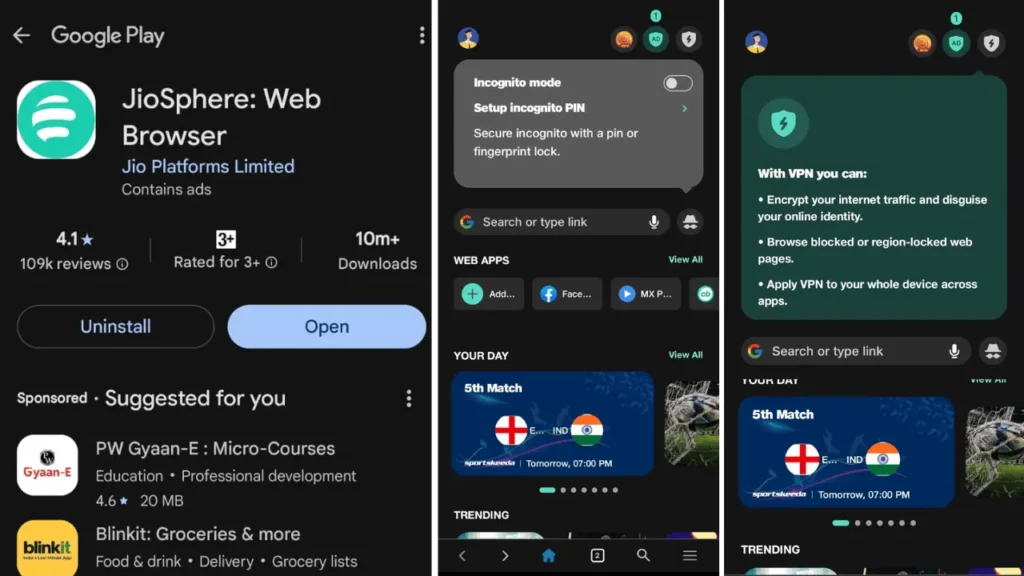
- Install JioSphere. On Android, open the Google Play Store, search for “JioSphere – Web Browser” by Jio Platforms Ltd, and tap Install. (Alternatively, on iPhone/iPad, search the App Store.) Screenshot idea: The Play Store page for JioSphere, showing the icon and Install button.
- Launch and grant permissions. Open JioSphere. It may ask for storage or media access. Grant these so you can save files. (iOS may request location or microphone access – you can skip optional ones.)
- Enable Ad-Blocker. Tap the menu (≡) and go to Settings → Ad Blocker (or Privacy) and turn it on. JioSphere’s ad-blocker should now be active for all sites, including YouTube. Screenshot idea: JioSphere Settings page with the Ad Block toggle turned on*.
- (Optional) Enable Background Play. On Android, go to Settings → Media and ensure background audio or “Play in background” is allowed. On iOS, JioSphere lacks a native background play switch, but you can:
- Add YouTube to Home Screen: In JioSphere, visit youtube.com. Tap the menu ⋮ (or share icon) and choose Add to Home Screen. This creates an “app-like” icon. Then launch YouTube from that icon within JioSphere. Now, when you play a video and lock the screen, a playback control appears (or swipe down the Notification shade and press Play).
Screenshot idea: The JioSphere browser showing youtube.com in the address bar, and the “Add to Home Screen” option highlighted.*
- Add YouTube to Home Screen: In JioSphere, visit youtube.com. Tap the menu ⋮ (or share icon) and choose Add to Home Screen. This creates an “app-like” icon. Then launch YouTube from that icon within JioSphere. Now, when you play a video and lock the screen, a playback control appears (or swipe down the Notification shade and press Play).
- Open YouTube. In JioSphere’s address bar, go to youtube.com or use the YouTube quick links. You can sign in to your Google account by tapping the profile icon at top right. Signing in lets your playlists and preferences carry over. Screenshot idea: JioSphere displaying the YouTube homepage, with no ads on video thumbnails.*
- Play a video. Tap any video. It should play without pre-roll ads (ad-block active). Then, background play: Press Home or turn off the screen. The video audio will continue playing. (On Android, a small floating player may appear; on iOS, use the lock-screen controls.)
- Enjoy JioCoin (optional). If interested, open JioSphere’s menu and find “JioCoin Rewards” (or Profile → JioCoin). Sign up to start earning coins when you use the News/Watch sections.
| Setting | What it does | Recommended state |
|---|---|---|
| Ad Block Plus (master toggle) | Turns the core ad-blocking engine on or off | Keep ON at all times — this is what blocks most ads directly |
| Allow Acceptable Ads | Lets through ads considered “non-intrusive” or industry-approved as safe, even while other ads stay blocked | ON by default; switch it OFF if you’d rather block these too — though this doesn’t guarantee every ad disappears |
| Whitelisted Domains | Lets you manually add or remove sites where ads should always be allowed | Use selectively — e.g., for sites you want to support or that break without ads |
| Anti-Tracking | Stops trackers from following your activity across websites | OFF by default — turn it ON if you want to avoid being tracked while browsing |
| Final toggle at the bottom | General protection setting | Keep ON |
Once these are set the way you want, its ad-blocking and privacy tools are fully configured for a cleaner, more private browsing experience.
JioSphere vs. YouTube Premium: The Honest Comparison
This is where it’s important to set expectations correctly. JioSphere blocks ads. YouTube Premium does a lot more than that, and the two aren’t really substitutes for each other.
| Feature | JioSphere | YouTube Premium |
|---|---|---|
| Ad-free YouTube (in-browser) | ✅ Yes | ✅ Yes |
| Ad-free on the YouTube app | ❌ No | ✅ Yes |
| Background/audio-only playback | ✅ Yes | ✅ Yes |
| Offline video downloads | ❌ No | ✅ Yes |
| YouTube Music Premium included | ❌ No | ✅ Yes |
| Supports creator ad revenue | ❌ No | ✅ Yes |
| Built-in VPN | ✅ Yes | ❌ No |
| Cost | Free | Paid monthly subscription |
That gap in the “supports creators” row is worth sitting with for a second. When you watch ad-free through a blocker, creators still don’t earn anything from that view the way they would from a Premium subscriber. If you genuinely rely on certain channels and want them to keep making content, it’s worth keeping that trade-off in mind — maybe even supporting a few favorites directly through memberships or other means.
A Few Rough Edges
No free lunch is completely free of friction, and JioSphere has some. User reviews point to inconsistent video performance on certain sites, a rendering engine that can lag behind Chrome or Firefox on complex web apps, and a near-total absence of the extension ecosystem those browsers offer. Some users have also flagged missing niceties — like a sleep timer for YouTube Music — that make it harder to fully abandon the official apps.
None of this makes JioSphere unusable; it just means “ad-free YouTube” is the browser’s headline trick, not proof that it’s a flawless all-around browser replacement.
FAQ
Q: Is JioSphere an official YouTube Premium replacement?
A: No. This is a web browser, not a YouTube service. It lets you watch YouTube without ads and with background audio by using its built-in ad blocker and media controls. But it does not give you an official YouTube Premium subscription. You still can’t download videos offline in YouTube format or access YouTube Music Premium through JioSphere.
Q: How do I enable background play on JioSphere?
A: On Android, simply play a video in JioSphere and press Home or lock the screen – the audio will continue. If needed, enable “Play in background” in Android settings. On iPhone, open youtube.com in JioSphere, tap the share menu and Add to Home Screen for a YouTube shortcut. Play via that – then locking the screen or switching apps keeps the audio on.
Q: What YouTube Premium features are NOT available via JioSphere?
A: It does not include official offline downloads, so you can’t legally save YouTube videos for offline watch (Premium does). It also doesn’t give you YouTube Music or Smart Downloads. Additionally, watching via JioSphere does not give creators their cut of Premium fees.
Q: Can I sign in to my Google account in JioSphere?
A: Yes. Navigate to youtube.com in JioSphere and tap the profile icon to log in. This syncs your YouTube account so you see your subscriptions, playlists, etc. Your watch history will remain separate, though (JioSphere’s incognito or normal mode). Signing in is optional.
Q: Does it work on all devices?
A: JioSphere supports Android phones/tablets and TVs, and iPhones/iPads. The iOS and Android features are mostly similar, but some TV-specific modes (Entertainment/Education) only apply on Android TV or Jio Set-Top Boxes. Background play works on Android; on iOS it requires the Add-to-Home-Screen trick.
Q: Is it safe to use for YouTube?
A: Yes, it’s an official Jio app. It’s sandboxed just like any browser. It does not require special permissions beyond normal web browsing. However, keep in mind Jio’s privacy policy: the browser claims no data is shared or collected, but JioSphere does use internet and may display Jio’s own ads outside of blocked content. Use at your own risk as with any non-Google browser.
Q: Can I download YouTube videos to watch offline with JioSphere? No. Offline downloads are a YouTube Premium-exclusive feature that JioSphere doesn’t replicate.
Q: Does JioSphere have a paid or premium tier? No — the entire browser is free, with no subscription plans.
Learn how to transfer any file from one device to another device : https://edutechskills.co.in/pairdrop-and-its-alternative/
Final Thoughts
JioSphere stands out among Indian browsers by bundling a free VPN, ad-blocker, anti-tracking, and rich regional-language support into one app that spans phones, smart TVs, and increasingly other devices. Whether your priority is ad-free browsing, a securely locked incognito mode, or simply using the web in your own language, the full Ad Block Plus settings panel gives you the fine-grained control to shape the experience exactly how you want it.