
If you’ve ever tried to send a photo from an Android phone to a Windows laptop, or a PDF from a Linux machine to an iPhone, you already know the pain. Apple’s AirDrop is seamless — but only if every device in the room is made by Apple. The moment you step outside that ecosystem, you need an AirDrop alternative that doesn’t care what logo is on your hardware, or you’re stuck emailing files to yourself, messaging them through a chat app that compresses your images, or plugging in a USB cable like it’s 2009.
Table of Contents
PairDrop exists to fix exactly that problem. It’s a free, open-source, peer-to-peer file-sharing tool that works in any modern web browser, on any operating system, with no app to install and no account to create.
What PairDrop Actually Does
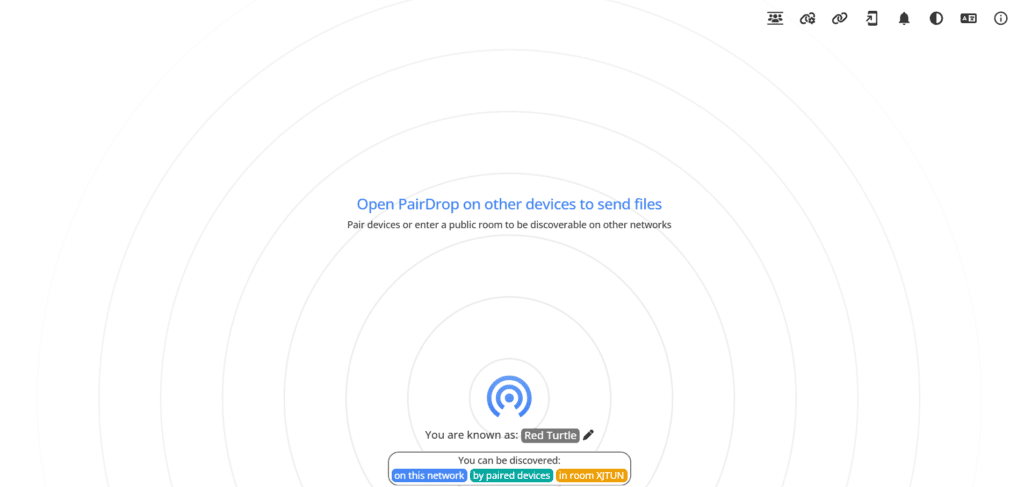
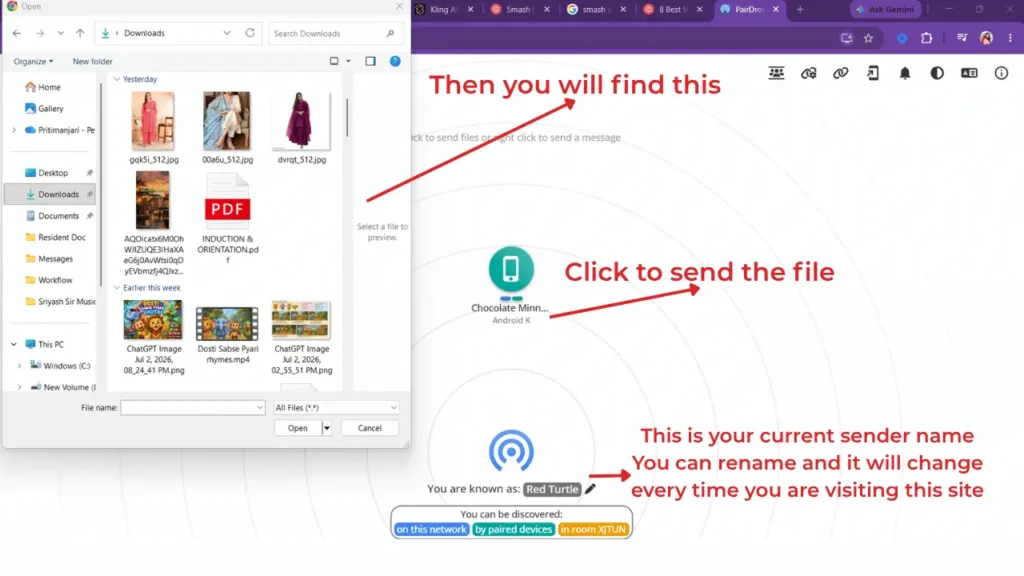
At its core, PairDrop lets you send files, folders, docs directly between devices that are near each other — no cloud storage, no middleman server holding your data, no signup form & no third-party app download required. Open pairdrop.net in a browser on two devices connected to the same Wi-Fi network, and each device shows up on the other’s screen as a little icon. Tap the device you want to send to, pick a file, and it transfers directly, peer-to-peer.
It’s essentially the tool Apple should have built for everyone: a cross-platform solution that works whether you’re on iOS, Android, Windows, macOS, Linux, or ChromeOS, because the entire thing runs in the browser using WebRTC rather than a proprietary protocol locked to one company’s hardware.
How to Share Files Through PairDrop: Step-by-Step Guide
Using PairDrop is refreshingly simple once you know where to look on the dashboard. Here’s exactly how it works, from opening the site to completing your first transfer.
Step 1: Find and Open PairDrop
Search for “pairdrop.net” in your browser and click the first result, which will take you directly to pairdrop.net. No download, installation, or account creation is required — the website itself is the application.
Step 2: Get Familiar with the Dashboard
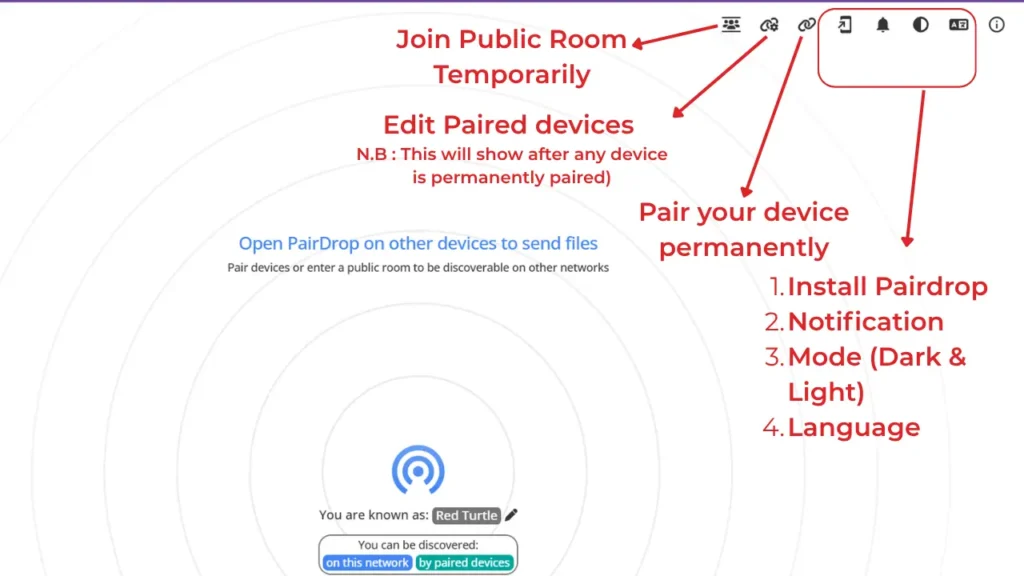
Once the page loads, you’ll land on PairDrop’s main dashboard. In the top-right corner, you’ll notice a small row of icons. These control most of the site’s functionality, and it’s worth knowing what each one does before you start sending files:
- Join a Public Room: Use this when you want to share a file with someone temporarily — for example, a one-off transfer to a device you don’t need to reconnect with later. There’s no lasting link between the two devices once the session ends.
- Pair Devices Permanently: Use this when you expect to transfer files with the same device repeatedly, such as your own laptop and phone. Pairing saves the connection so you don’t have to repeat the setup process every time.
- Notifications: A secondary option that most users won’t need to touch during everyday use.
- Dark Mode / Light Mode: A simple display preference toggle with no effect on functionality.
- Language Selector: Lets you switch the interface language. Since the site defaults to English, most users can leave this as is.
Of these, the two icons worth focusing on are Join a Public Room and Pair Devices Permanently — everything else is a minor convenience setting.
Step 3: Understand Your Device Profile
Below the icon row, the dashboard displays instructions to open PairDrop on another device to begin sending files, along with a note that you can also pair devices or join a public room to become discoverable across different networks.
Just under that, you’ll see a signal-style indicator along with an automatically generated display name — for example, “Maroon Scorpion.” This is simply your device’s identity on the network, and you can change it at any time using the pencil (edit) icon beside the name.
Below your device name, PairDrop also shows a line confirming that your device is discoverable on the current network, along with a unique room ID (something like “QZKBi”). Other devices can connect to you either by entering this room ID manually or by scanning the accompanying QR code.
Step 4: Share a File Through a Temporary Public Room
To send a file without setting up a permanent connection, select Join a Public Room. PairDrop will display a QR code along with the room code underneath it.
- On a mobile device: Simply scan the QR code using your camera to join instantly.
- On a laptop or desktop: Scanning a QR code is less convenient, since it requires opening a separate camera application. Instead, open pairdrop.net on the second device, select the public room option there as well, and manually enter the room ID from the first device.
Once both devices have joined the same room, they’ll appear to one another on the dashboard. From there, simply upload the file you want to send, and the recipient will need to accept the transfer on their end. Once accepted, the file transfers directly between the two devices.
Step 4a: Accept the Incoming File
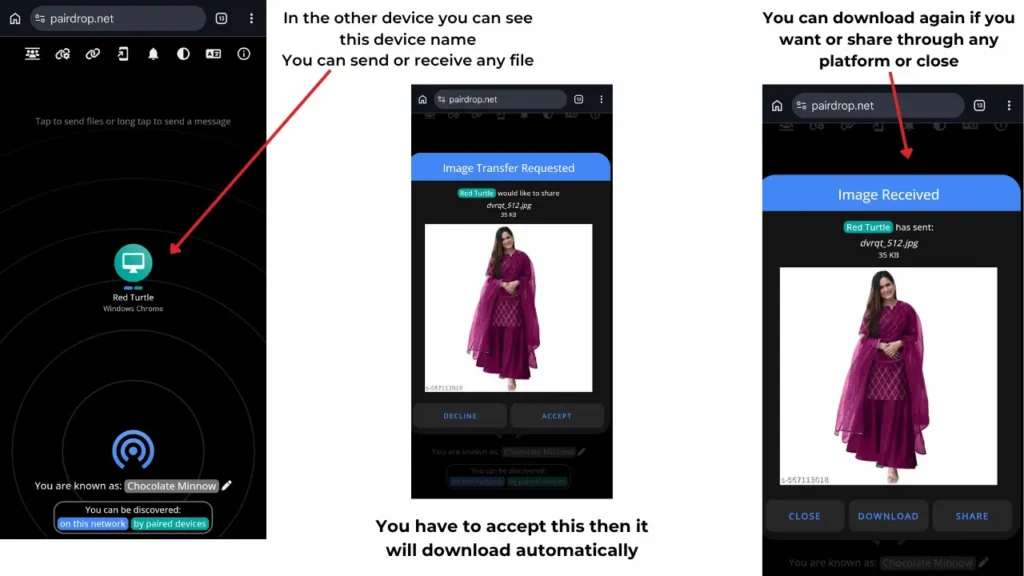
File transfers on PairDrop don’t happen automatically in the background. Whenever a file is sent, the receiving device displays a request that must be manually accepted before the transfer begins. If this request is ignored or declined, the file will not be sent, so make sure to check the receiving device and approve the transfer promptly.
Step 4b: Download the File Before It’s Lost
Once the transfer completes, the file is automatically saved to your device — it can be downloaded again from the transfer window. Or else you can share the file directly from there by using sharing option.
Step 5: Pair Devices for Permanent, Repeat Transfers
If you frequently share files with the same device, permanent pairing saves you from repeating the setup each time. Select Pair Devices Permanently, and PairDrop will generate a QR code along with a six-digit pairing key beneath it.
- Scan the QR code from the other device, or
- Manually enter the six-digit key on the second device to complete the pairing.
Once paired, the two devices remain linked, and you can send documents, photos, or any other files between them at any time without repeating the setup. If you no longer wish to stay connected, you can disconnect the devices just as easily.
Step 6: Manage or Remove Paired Devices
After pairing a device, a new icon appears in the top-right icon bar specifically for unpairing. Selecting it lets you disconnect from that device permanently whenever you no longer need the connection. PairDrop also supports pairing with multiple devices at once, so you’re not limited to a single permanent connection.
That’s the complete process for sharing files through PairDrop — no login screens, no third-party servers, and no loss in file quality along the way.
Key Features That Make This Possible
Handles tricky networks. PairDrop is built to work through the situations that usually break local device discovery — public Wi-Fi, corporate networks, VPNs, mobile hotspots, and even iCloud Private Relay.
Everyday conveniences. Multiple files transfer at once with a combined progress bar, completed transfers auto-download when possible, and on mobile you can save images and files straight to your gallery through the native share menu. On Windows and Ubuntu, you can even send files straight from the right-click context menu.
Real internationalization. The site’s language switcher lists dozens of languages, from Arabic and Hebrew to Japanese, Korean, and Simplified and Traditional Chinese — all community-translated, since the project is fully open source.
Other PairDrop Alternatives Worth Knowing About
PairDrop isn’t the only browser-based file-sharing tool out there. If you’re comparing options, here’s how a few other well-known alternatives stack up.
- Snapdrop was the original inspiration behind PairDrop and once worked almost identically — simple, local, peer-to-peer, no signup. However, Snapdrop was acquired by LimeWire, and the experience has changed significantly since then. Files are <cite index=”11-1″>now uploaded to the cloud and routed through LimeWire’s servers instead of transferring directly between devices, with no clear policy on how long the files are retained or who can access them</cite>. Anyone who valued Snapdrop for its privacy should be aware of this shift before using it again.
- ShareDrop followed a similar path to Snapdrop. It was also <cite index=”20-1″>acquired by LimeWire</cite>, and sending a file is no longer as straightforward as it used to be. Rather than a clean, direct transfer, users are now guided through LimeWire’s broader platform, which pushes its own file-sharing and AI-related features well beyond simple file sharing.
- ToffeeShare works differently: instead of pairing two devices on the same network, you drag a file onto the site, and it generates a private, one-time link using peer-to-peer WebRTC technology. You send that link to the recipient, they open it, and the file transfers directly between your two devices without ever touching a server. It’s a genuinely excellent, privacy-first file-sharing platform — but the transfer only stays alive while your browser tab is open. Close the tab before the recipient finishes downloading, and the file is gone for good. There is no file size limit.
- JustBeamIt takes a similarly lightweight approach, with one added convenience: your device and the recipient’s device don’t need to be online at the exact same moment you start the process. You upload a file, get a shareable link, and the recipient can open that link whenever they’re ready to begin the download. That said, the same rule applies here as with ToffeeShare — if you close the browser tab before the transfer completes, the file is lost and cannot be recovered. there is no file size limit.
All four of these tools share a few things in common with PairDrop: they’re free to use, require no account creation, and don’t bombard you with unnecessary notifications.
learn about ai trends you must know in 2026 : https://edutechskills.co.in/ai-technology-trends-2026-you-must-follow/
The Bottom Line
PairDrop solves a problem that shouldn’t still exist in 2026: moving a file between two devices that don’t share the same manufacturer’s logo. It does it without asking for your email address, without uploading your files to a server you don’t control, and without costing anything. As far as AirDrop alternatives go, it’s not flawless, but for a tool this useful, the fact that it’s also free and open source makes it an easy recommendation for anyone tired of emailing themselves a PDF just to get it onto another device.

4 thoughts on “PairDrop and its Alternative That Works on Every Device”