
Microsoft Designer is one of the most exciting free tools Microsoft has ever launched — and most people have no idea it even exists. Whether you want to create a birthday invitation, a cool Instagram post, or a school project poster, Microsoft Designer makes it shockingly easy. No design experience needed. No expensive software. Just your ideas and AI doing the heavy lifting.
In this tutorial, we’ll walk through every major feature of Microsoft Designer in simple language — the kind a 10th-grade student can understand and use right away. Let’s dive in!
Table of Contents
What Is Microsoft Designer?
Microsoft Designer is a free, AI-powered graphic design tool made by Microsoft. You can access it at designer.microsoft.com from any browser. It’s also available as a mobile app on Android and iPhone.
Think of it as a mix between Canva and a super smart AI assistant. You type what you want, and it creates beautiful designs for you — like magic.
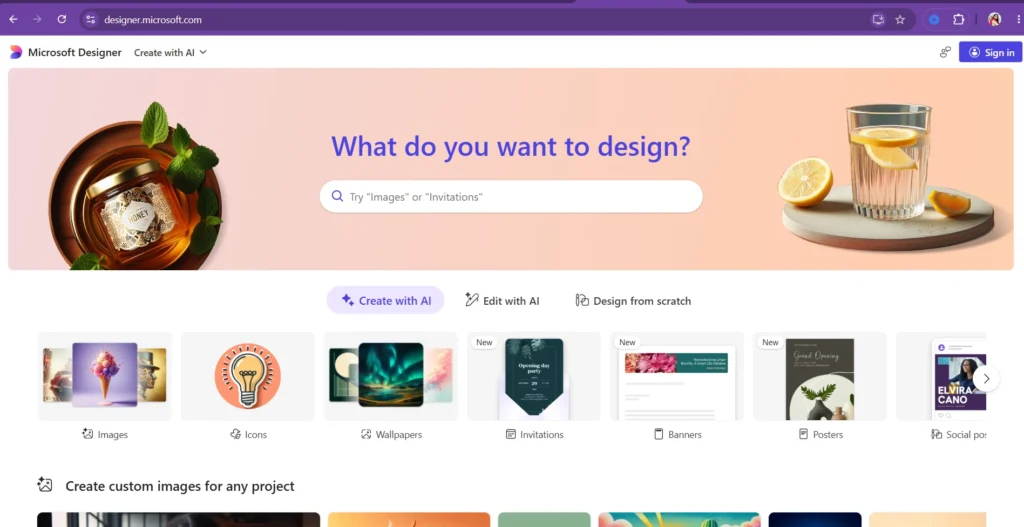
You just need a free Microsoft account to get started (the same one you use for Outlook or Xbox). Sign up takes less than 2 minutes.
How to Get Started with Microsoft Designer
Before exploring the features, let’s get you set up. You’ll need a Microsoft 365 Personal or Family account to use Microsoft Designer. Note that it is currently not available to enterprise (business/school) users — so make sure you’re signing in with a personal Microsoft account.
Here’s how to get started step by step:
- Go to designer.microsoft.com in your web browser and sign in with your personal Microsoft account.
- Use the search bar at the top of the page to quickly find templates or inspiration — try keywords like “invitation” or “social media post” to see what’s available.
- Pick a template or start from scratch — there are templates for every theme, or you can open a blank canvas for full creative freedom.
- Let AI suggest layouts — as you design, Microsoft Designer gives AI-powered suggestions and layout recommendations to make your graphic look professional with very little effort.
- Save your design inside the app once you’re happy with the result.
- Share it anywhere — export or send your design directly to presentations, documents, emails, and social media.
Feature #1: AI-Powered Image Generation
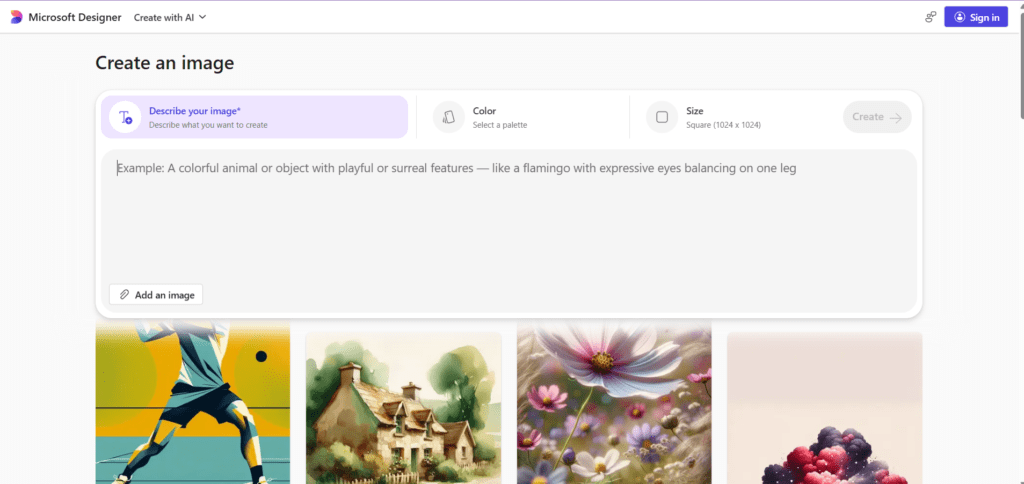
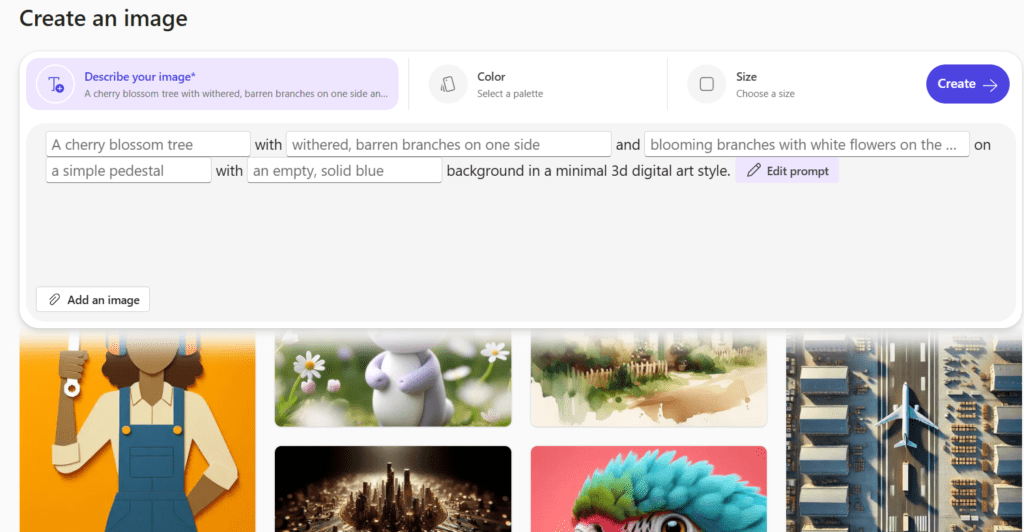
This is the most jaw-dropping feature of Microsoft Designer. You simply type a description of what you want — for example, “a birthday card with colorful balloons and confetti for a 16-year-old” — and the tool uses DALL-E (a powerful AI from OpenAI) to create multiple unique images for you.
How to use it:
- Go to designer.microsoft.com
- Click on “Create an image”
- Type your description in the box
- Click Generate
- Choose your favourite from the options shown
You can keep generating new options until you find one you love. Each one is unique — no two results are the same!
Why it’s amazing: You don’t need to search Google Images or worry about copyright. Every image is freshly made for you.
Feature #2: Ready-Made Templates
Not sure where to start? Microsoft Designer has hundreds of pre-built templates for almost every situation:
- Social media posts (Instagram, Facebook, LinkedIn)
- Birthday and party invitations
- Flyers and posters
- Greeting cards
- Stickers
- Banners for websites or emails
- Collages from your photos
How to use it:
- On the home screen, scroll down to browse templates by category
- Click any template you like
- Edit the text, colors, and images to make it yours
- Download or share when done
Templates are a great starting point when you’re not sure what design you want. You can mix AI generation with templates for even better results.
Feature #3: Easy Photo Editing Tools
Microsoft Designer has smart editing tools that let you fix and improve your photos without being a professional editor. Here’s what you can do:
Background Remover
Want to cut yourself out of a photo and place yourself on a beach? No problem. The background remover does it in one click.
Background Blur
Make your photo look like it was taken with a professional camera by blurring the background.
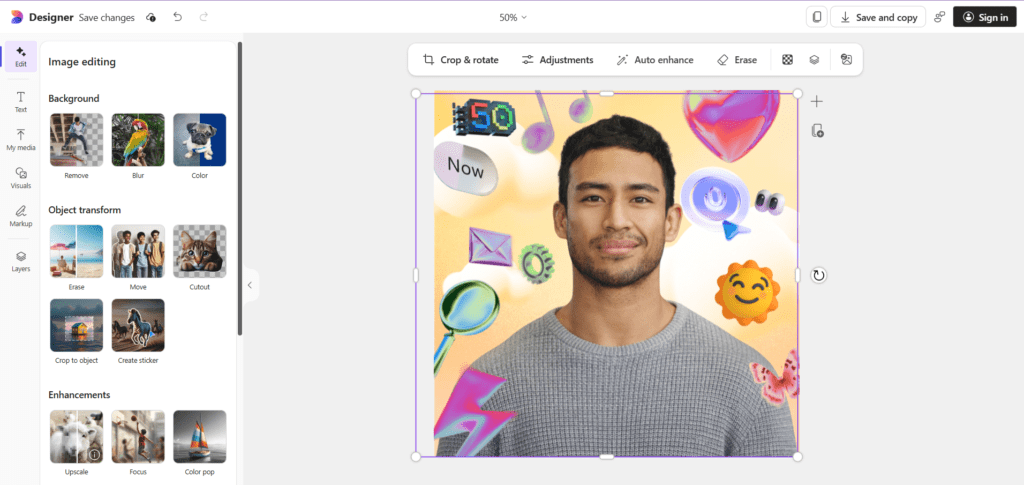
Generative Erase
Have an unwanted object in your photo — like a trash can in the background of your selfie? Select the area and the AI erases it, filling in what should naturally be there.
Upscale (Increase Resolution)
If your photo looks blurry or pixelated, the Upscale feature makes it sharper and clearer using AI.
How to use it:
- Select any editing tool from the left panel
- Apply changes and download
- On the home screen, click “Edit a photo”
- Upload your image
Feature #4: Brand Kit
If you run a club, a YouTube channel, or a small side business, the Brand Kit feature in Microsoft Designer is a game changer. It lets you save your brand’s:
- Logo (so you can add it to any design quickly)
- Colors (so every design uses the same shades)
- Fonts (so your text always looks consistent)
Once your Brand Kit is set up, every new design you create can automatically follow your brand style — no more picking colors from scratch every time.
How to use it:
- Click on your profile icon in Microsoft Designer
- Go to “Brand Kit”
- Upload your logo, pick your colors, and choose your fonts
- Save — now your brand style is always one click away
Feature #5: Microsoft 365 Integration
Microsoft Designer isn’t just a standalone tool — it works seamlessly with other Microsoft apps you probably already use:
| App | What You Can Do |
|---|---|
| PowerPoint | Add AI-generated images to your slides |
| Word | Insert custom graphics into documents |
| Outlook | Use designed banners in email signatures |
| Teams | Share custom stickers and graphics in chats |
| OneNote | Add visuals to make your notes look great |
If you have a Microsoft 365 account, the Microsoft Designer tools appear automatically inside PowerPoint and Word on the web. Just click the Copilot icon and describe what image you need.
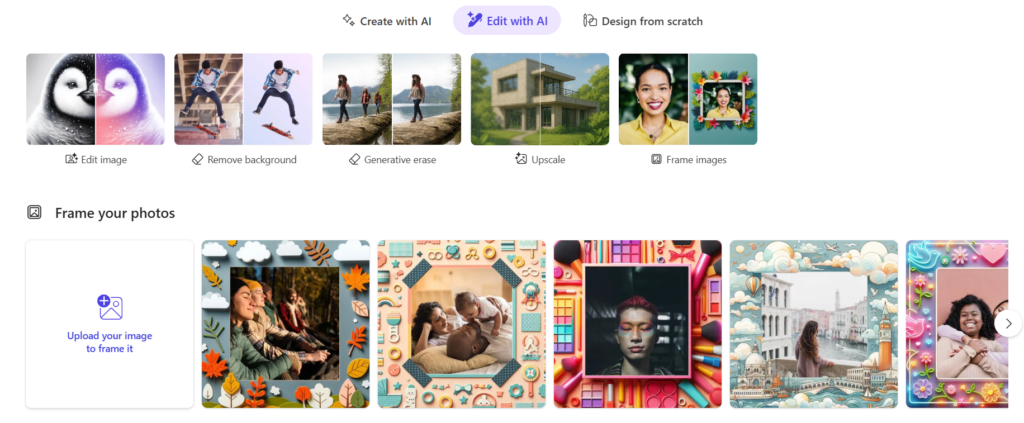
Feature #6: Edit with AI — 5 Powerful Photo Editing Tools
Click “Edit with AI” at the top of the page and you get five AI-powered tools — no design skills needed at all.
- Edit Image — Restyle, recolor, or completely transform any photo using AI.
- Remove Background — The AI cuts out your subject in one click, ready to place on any new background.
- Generative Erase — Brush over any unwanted object and AI fills in what should be there naturally.
- Upscale — Make blurry or low-quality images sharp and print-ready.
- Frame Images — Drop your photo into a decorative AI-generated frame — autumn leaves, art borders, travel themes, and more.
Is Microsoft Designer Free?
- Free Access (Preview Mode):
- Anyone with a Microsoft account can use Designer for free.
- Includes AI-powered tools for creating social media posts, invitations, postcards, and graphics.
- Features like background removal, object erasing, and auto-layout suggestions are available.
- Limitations of Free Version:
- Free users get monthly credits to generate and edit designs.
- Some advanced AI features (like unlimited generations or premium templates) are reserved for Microsoft 365 subscribers.
- Paid Options (Future):
- Microsoft 365 Personal ($9.99/month), Family ($12.99/month), and Premium ($19.99/month) plans will unlock extra Designer benefits.
- Subscription tiers expand credits, features, and integrations with other Microsoft apps.
Free vs Paid Comparison
| Feature | Free (Preview) | Paid (Microsoft 365) |
|---|---|---|
| Access | Available with Microsoft account | Requires subscription |
| AI Credits | Limited monthly credits | Higher/unlimited credits |
| Background Removal | Basic | Advanced + faster |
| Templates | Standard | Premium, exclusive designs |
| Integration | Standalone web app | Full integration with Word, PowerPoint, OneDrive |
| Cost | ₹0 | Starts at ~$9.99/month |
Microsoft Designer vs Canva — Which Is Better?
| Feature | Microsoft Designer | Canva |
|---|---|---|
| AI Image Generation | ✅ Powered by DALL-E | ✅ Available (limited free) |
| Free Templates | ✅ Yes | ✅ Yes |
| Background Remover | ✅ Yes | ✅ Yes (paid) |
| Microsoft 365 Integration | ✅ Excellent | ❌ Limited |
| Price | ✅ Free | ⚠️ Free + Paid tiers |
| Mobile App | ✅ iOS & Android | ✅ iOS & Android |
If you want to use Photoshop online must read this : https://edutechskills.co.in/photopea-complete-tutorial/
Final Thoughts
Microsoft Designer is one of the smartest and most underrated design tools available today — and it’s free. Whether you’re a student making a class presentation, someone managing a school club’s Instagram, or just someone who wants to make a pretty birthday card, this tool will genuinely impress you.
The AI-powered image generation alone puts Microsoft Designer ahead of most other free tools. Add in the powerful photo editing tools, Brand Kit, and seamless Microsoft 365 integration, and you have a complete design studio right in your browser.
Head over to designer.microsoft.com, sign in with your free Microsoft account, and try it yourself. You’ll have your first design ready in under 10 minutes.